Title here
Summary here
Robo Gallery allows you to apply custom CSS styles to a specific gallery. This is useful when you want to customize the appearance of a single gallery without affecting others.
You can modify:
Each gallery includes a Custom CSS field where you can apply styles that affect only that gallery.
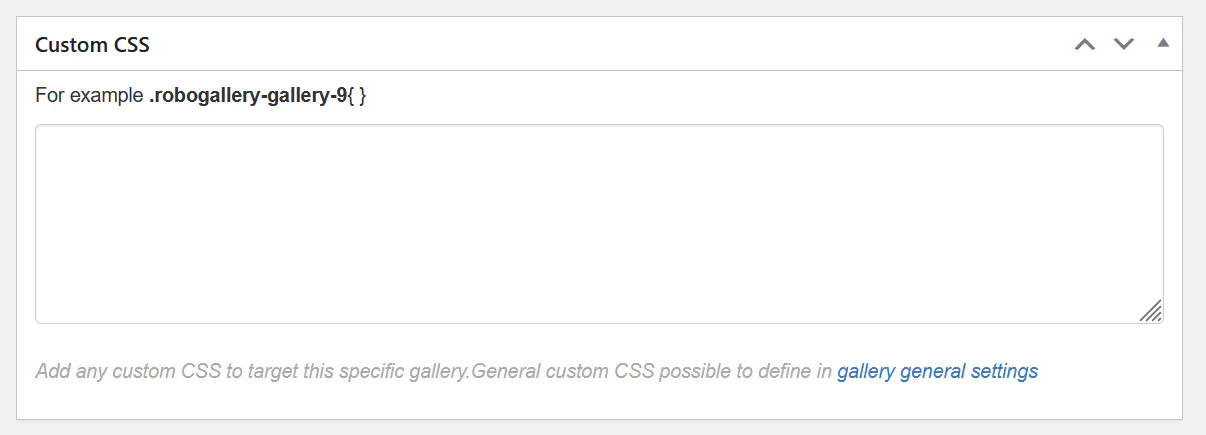
Inside this field you can write CSS rules targeting the gallery.
Example selector:
.robogallery-gallery-9 { }The number in the selector corresponds to the gallery ID, ensuring that the CSS only affects that specific gallery.
If you want to apply styles to all galleries, you can use the Global Custom CSS / JS settings.
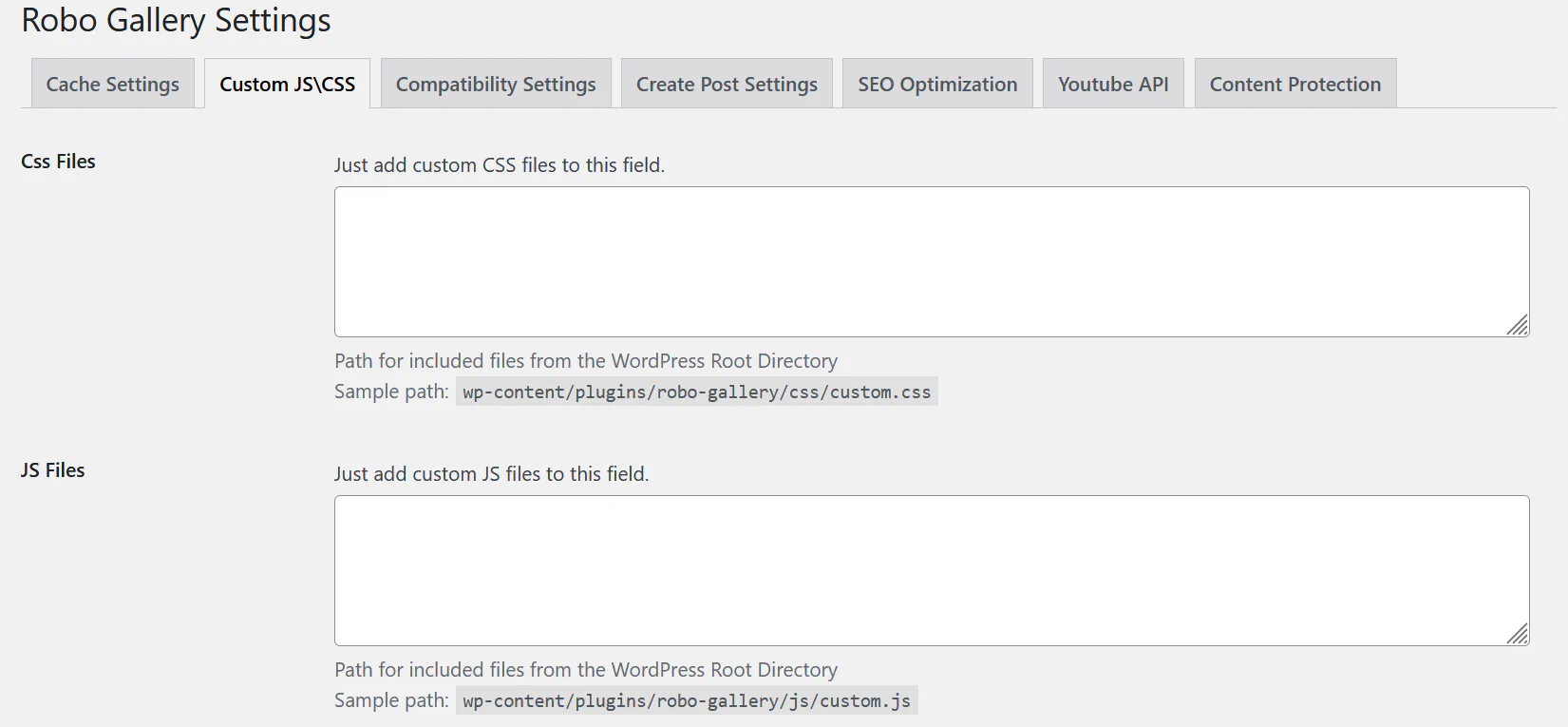
Navigate to:
Robo Gallery → Settings → Custom JS/CSS
There you can:
Example CSS file path:
wp-content/plugins/robo-gallery/css/custom.cssExample JavaScript file path:
wp-content/plugins/robo-gallery/js/custom.jsCustom CSS is useful when you want to:
Use gallery-specific CSS when customizing a single gallery, and global CSS files when applying styles across multiple galleries.
This keeps your styles organized and prevents unwanted changes across your site.