Title here
Summary here
Robo Gallery lightbox includes built-in animation effects that control how images appear and transition inside the lightbox.
These effects improve user experience and make gallery interactions feel smooth and modern.
Lightbox animation settings are available in:
Gallery → Lightbox Options
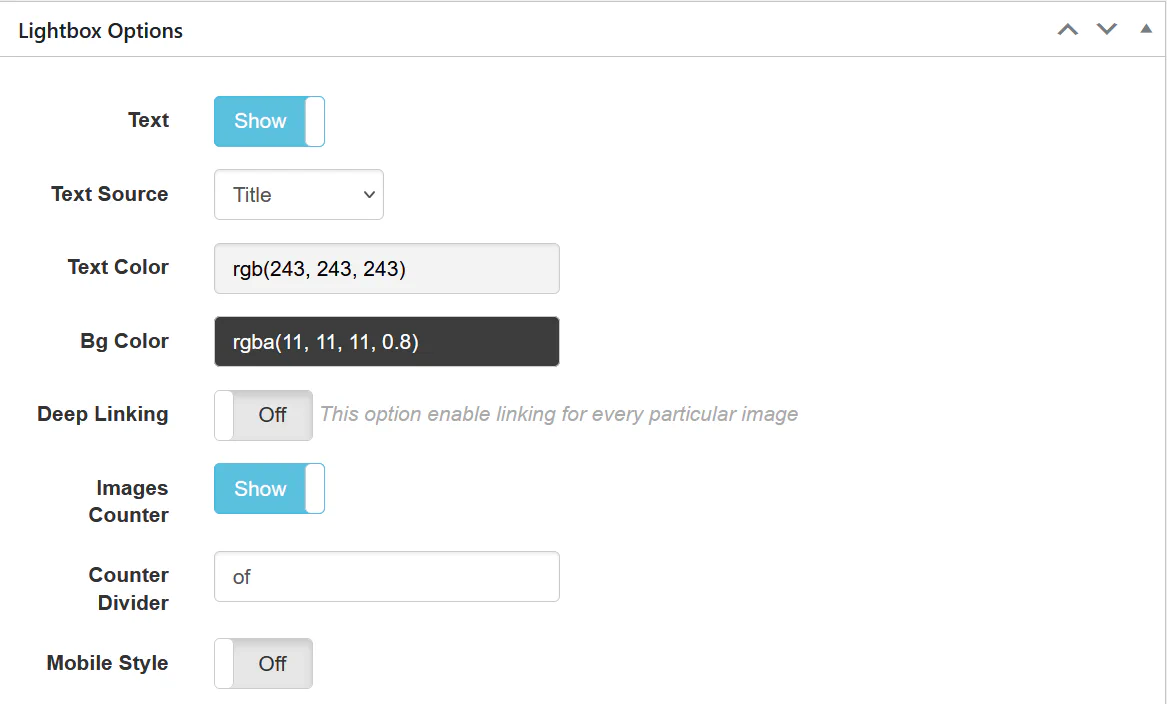
Depending on the lightbox engine selected, you can configure:
Animations apply to:
In Fusion Grid, animation settings are located under:
Gallery Settings → Lightbox tab
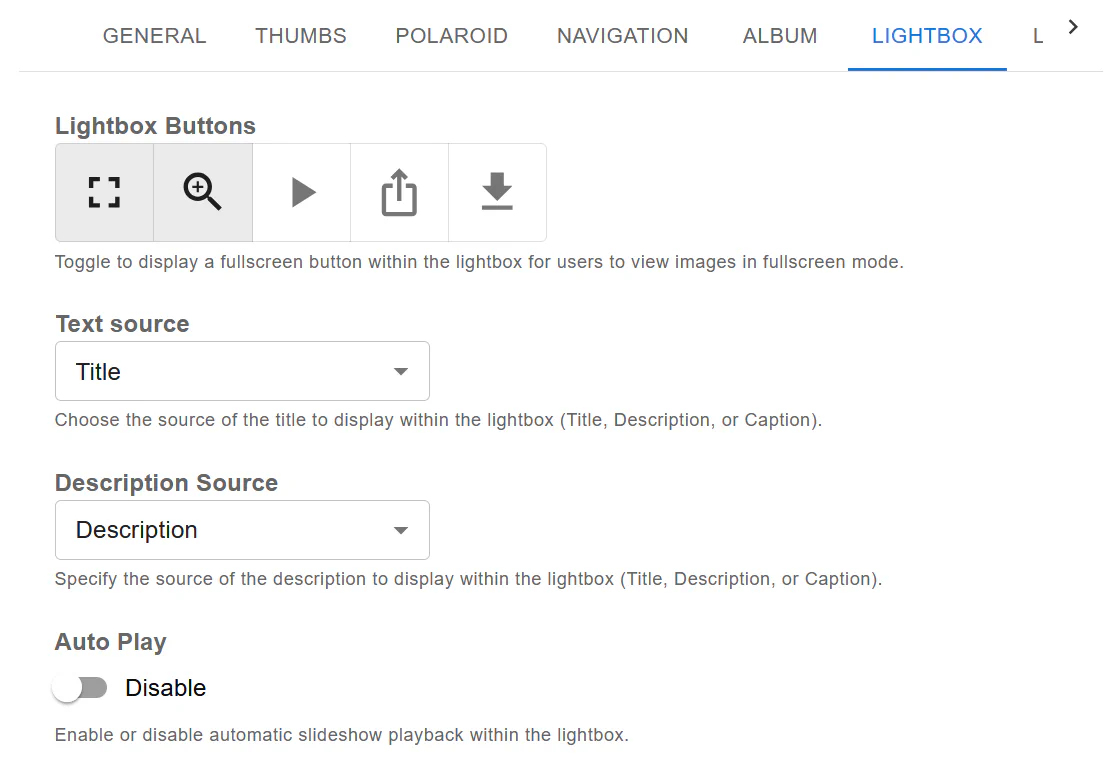
Fusion lightbox provides:
Depending on configuration, animations may include:
You can choose the style that best fits your website design.
Fade and smooth zoom effects work best for portfolios and business sites.
Too much motion may distract users.
Touch swipe transitions are optimized automatically in Fusion version.
Lightbox animations are optimized and lightweight. They do not significantly impact performance when:
Lightbox animations help:
Both Classic (v3) and Fusion (v5) support animation effects, with Fusion providing smoother and more advanced transitions.