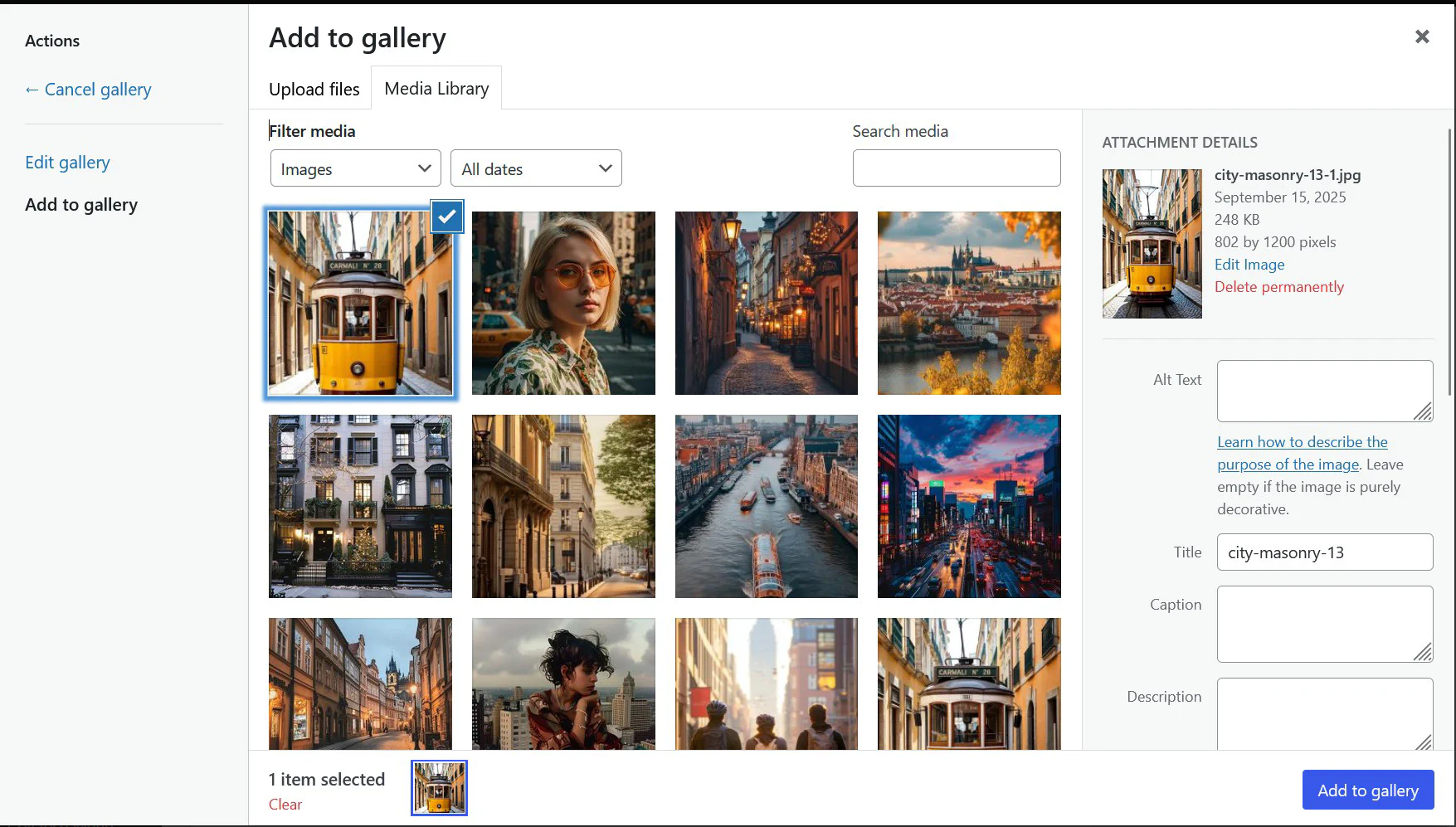
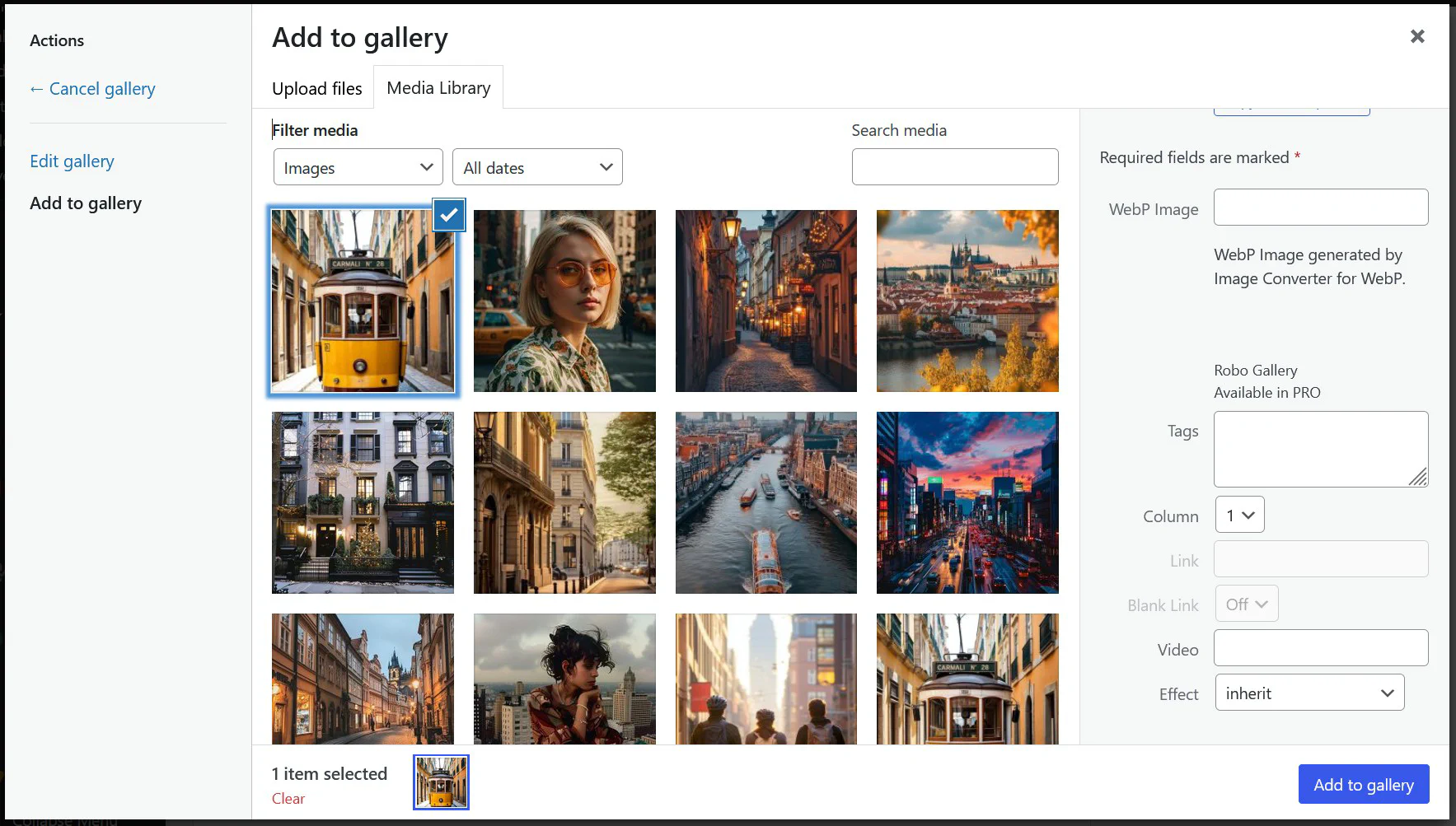
Each image in your Robo Gallery includes a set of individual configuration options available through the built-in Media Manager.
These settings allow you to define how every image behaves on the front end - giving you full creative control over links, text, and video integration.
When adding or editing images in the gallery, you’ll find several fields available in the sidebar of the Media Manager.
The following options can be configured for each image:
Title - short name or label for the image, displayed in the Lightbox or hover effects.
Caption - text displayed directly below the image thumbnail.
Description - longer text that can appear in Lightbox or custom layouts.
Alt Text - alternative text used for accessibility and SEO purposes.
Tags - keywords used for filtering or categorizing images.
Column - lets you assign the image to a specific column in grid layouts (useful in advanced designs).
Effect - defines how hover or animation effects are applied to gallery images.
This option controls the default visual effect for the entire gallery (for example, fade, zoom, or slide animations). You can configure it in the general settings section. Additionally, in the Media Manager, each image can have its own individual effect, allowing you to override the default gallery animation and create a more dynamic, varied visual style - for instance, combining different hover or transition effects within a single gallery.
Robo Gallery’s Image Options offer complete control over individual image behavior and metadata.
While the free version provides essential text and tag management, the PRO version unlocks link and video fields, enabling dynamic, interactive, and mixed-media galleries.
For the best creative flexibility, it’s recommended to use the PRO version, which supports mixed image types, custom links, and full video embedding.