Title here
Summary here
The Top Menu allows visitors to navigate between galleries, categories, or albums directly above the thumbnails grid.
How it works depends on whether you are using Classic or Fusion gallery type.
In the Classic version, the Top Menu is based on the gallery hierarchy structure.
You can build a hierarchy of galleries using drag & drop.
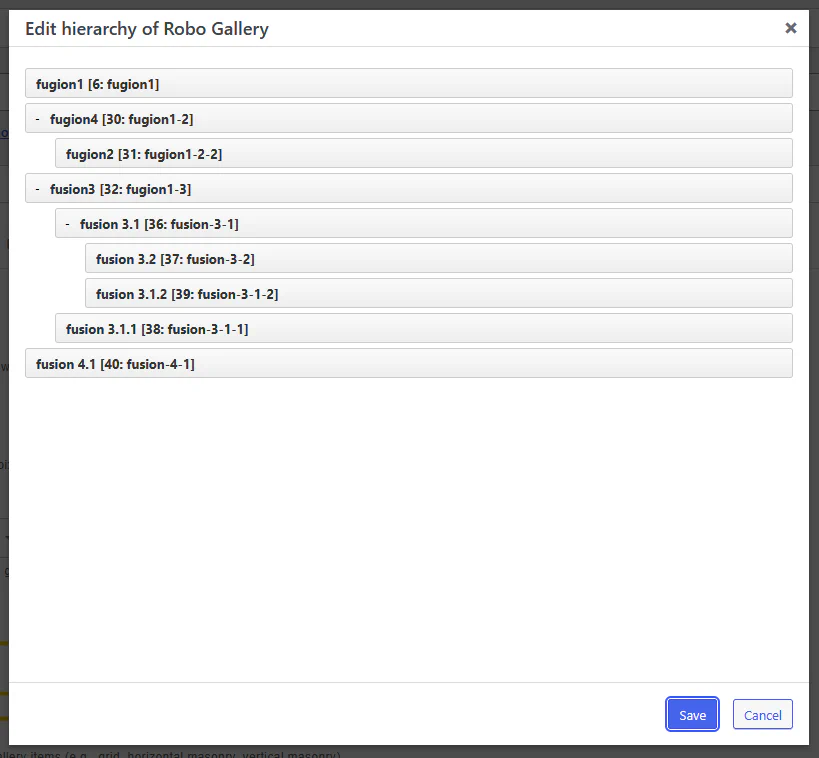
Simply drag galleries under a parent gallery to create nested levels.
This structure defines how the Top Menu will be displayed.
Go to:
Menu Options → Menu → Show
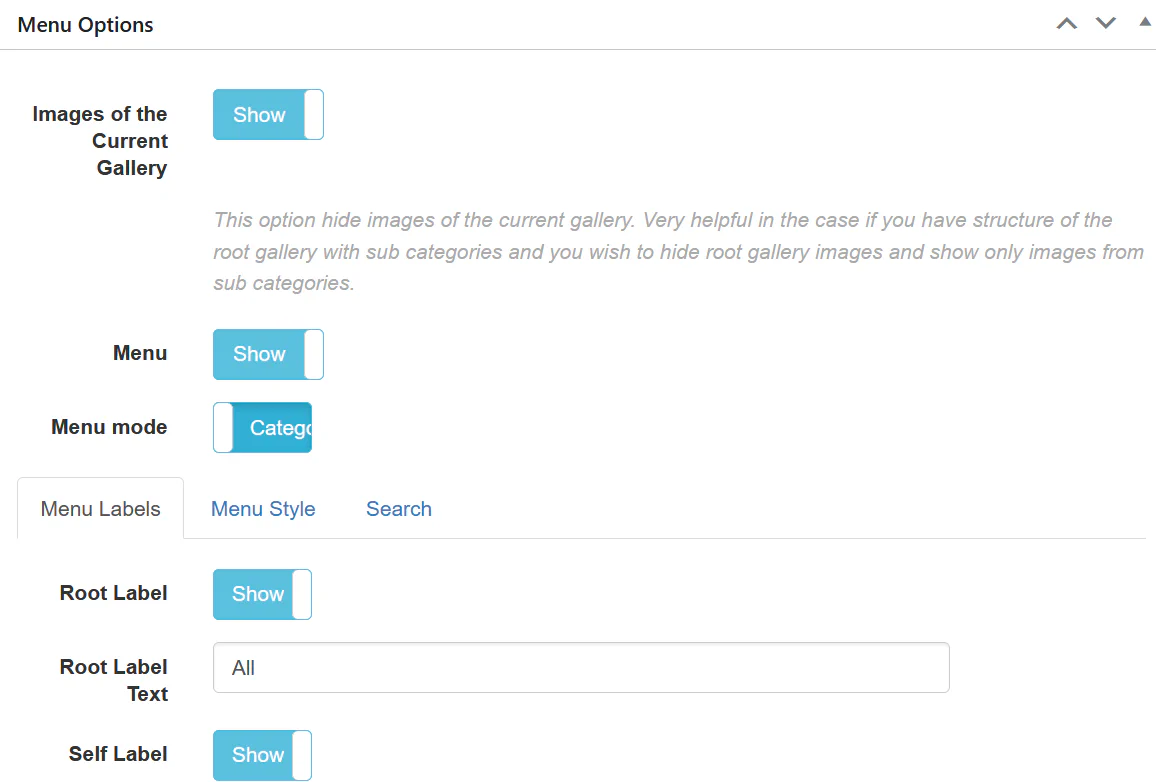
Enable the menu and configure:
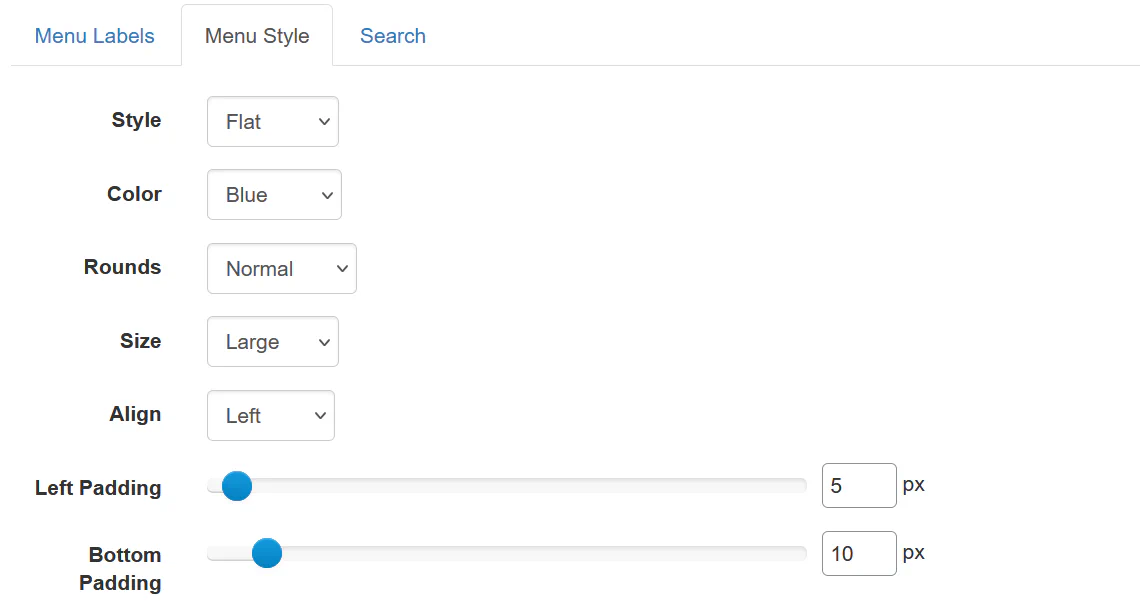
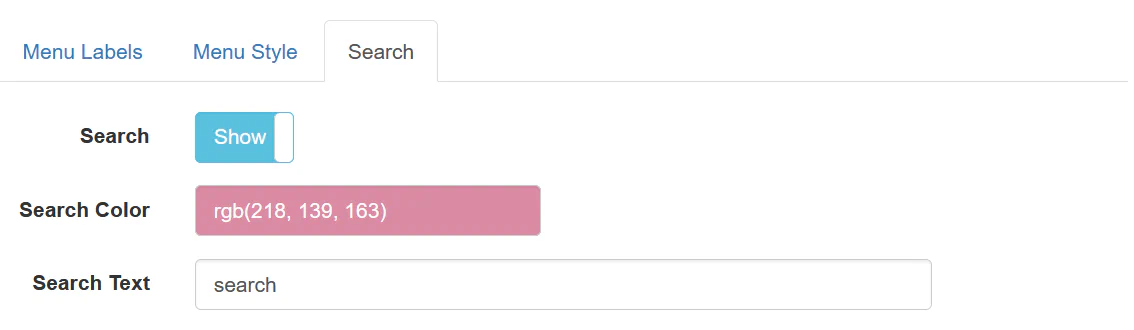
When hierarchy is configured and menu is enabled, the Top Menu appears above thumbnails.
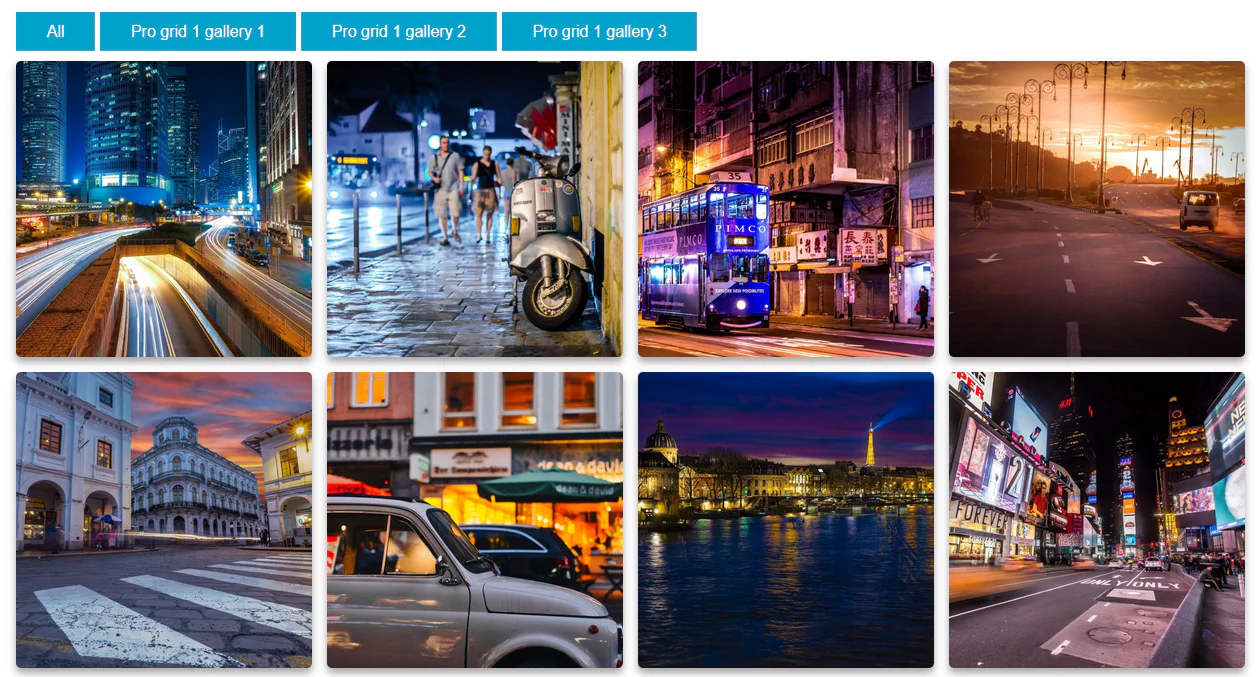
The menu reflects the drag-and-drop structure created in the backend.
In Fusion, album structure is managed differently.
Instead of drag & drop inside the post list, Fusion uses the Albums Hierarchy widget.
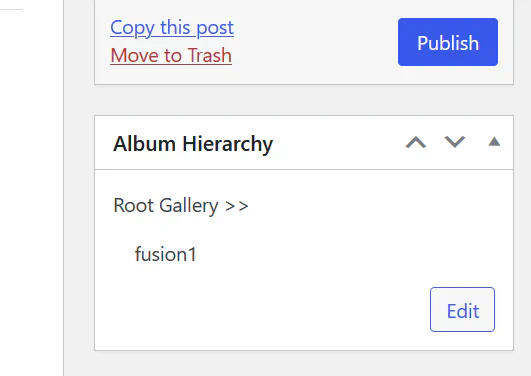
This widget defines:
Fusion automatically generates navigation based on this structure.
Go to:
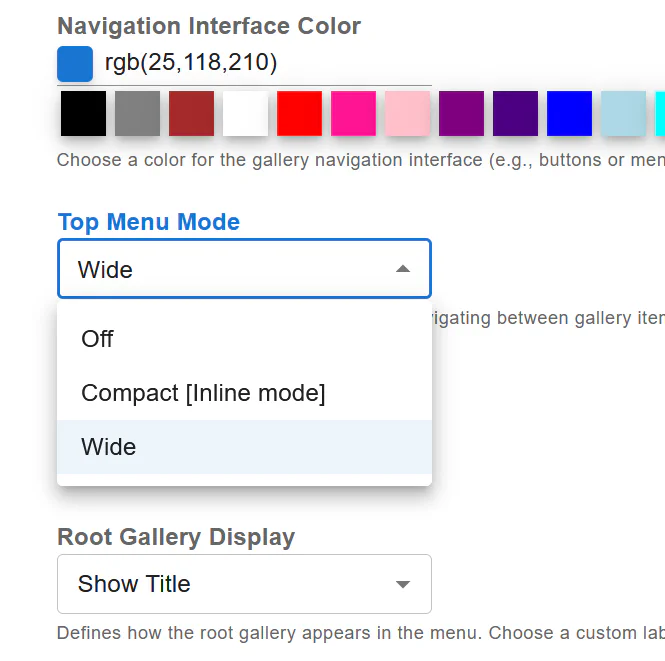
Navigation → Top Menu Mode

Available modes:
This controls how albums are displayed above thumbnails.
Fusion allows control over how the root gallery appears:
| Feature | Classic | Fusion |
|---|---|---|
| Hierarchy creation | Drag & Drop in gallery list | Albums Hierarchy widget |
| Menu type | Categories / Tags | Album-based navigation |
| Top menu control | Menu Options panel | Navigation → Top Menu Mode |
| Structure logic | Manual hierarchy | Structured album system |
The Top Menu is a powerful navigation tool that transforms a simple gallery into a structured visual content system.