Title and Description Settings

Robo Gallery allows you to fully control how titles, captions, and descriptions are displayed inside the lightbox.

You can:
  • Choose which field is used as the Title
  • Choose which field is used as the Description
  • Enable or disable text completely
  • Customize text and background colors
  • Configure description panels
  • Apply settings in both Classic (v3) and Fusion (v5)

Classic Lightbox settings

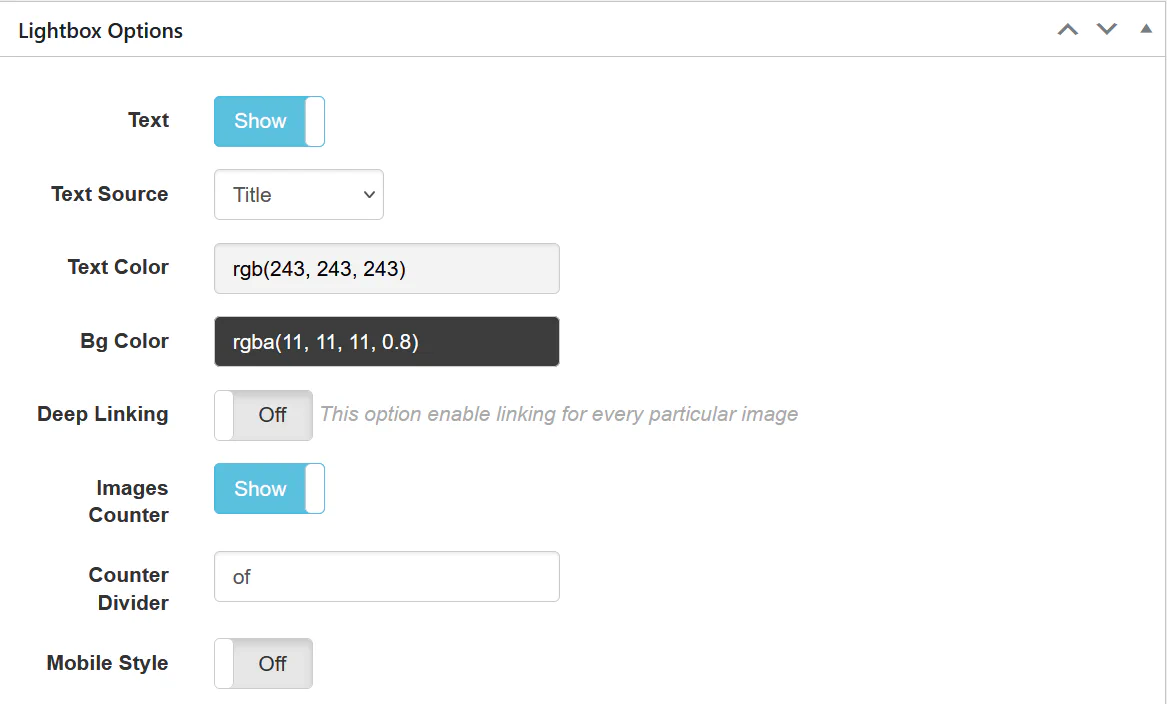
Inside Lightbox Options, you can configure how text appears over your images.

Text Toggle

Enable or disable text display inside the lightbox.

If disabled, images will open without any title or description overlay.


Text Source

You can select which image metadata field will be used:

  • Title
  • Description
  • Caption

These values are pulled directly from the WordPress Media Library.


Text & Background Colors

  • Text Color — controls the font color
  • Bg Color — controls the overlay background

This allows you to match the lightbox with dark or light themes.

Description Panel Settings

Classic Description Panel

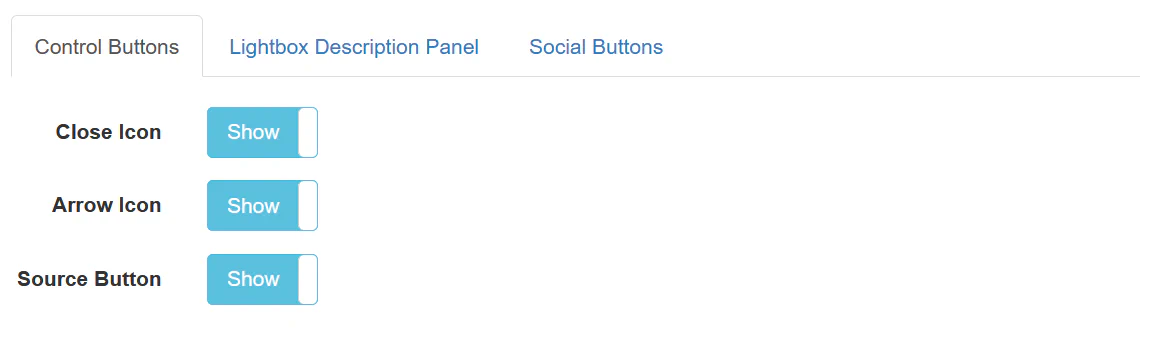
In the Lightbox Description Panel tab:

  • Enable or disable the panel
  • Choose Description Source
    • Title
    • Description
    • Caption
  • Adjust how additional content is displayed

This panel is ideal for galleries that require extended explanations.

Control Buttons

Classic Control Buttons

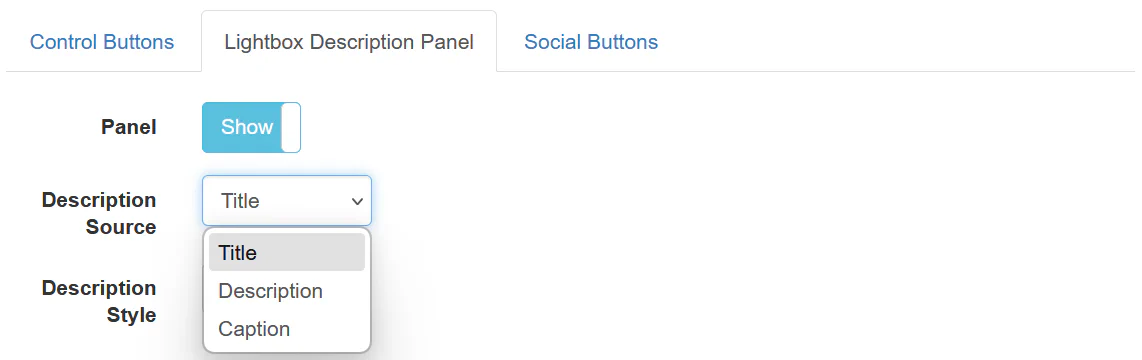
You can toggle visibility of:

  • Close icon
  • Arrow navigation
  • Source button

This allows you to create either a minimal or fully interactive lightbox.

Social Buttons

Classic Social Buttons

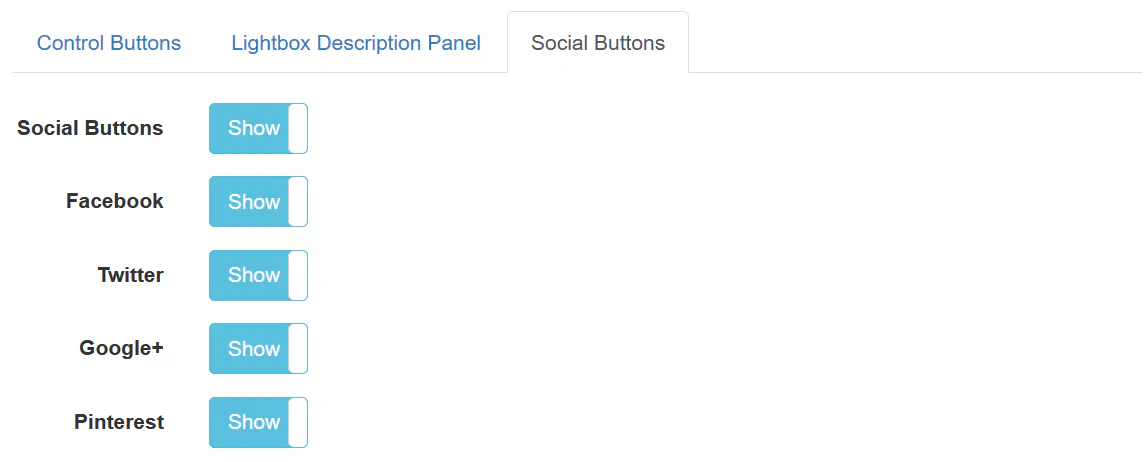
Enable social sharing buttons:

  • Facebook
  • Twitter
  • Google+
  • Pinterest

Perfect for portfolio, product, or photography galleries.
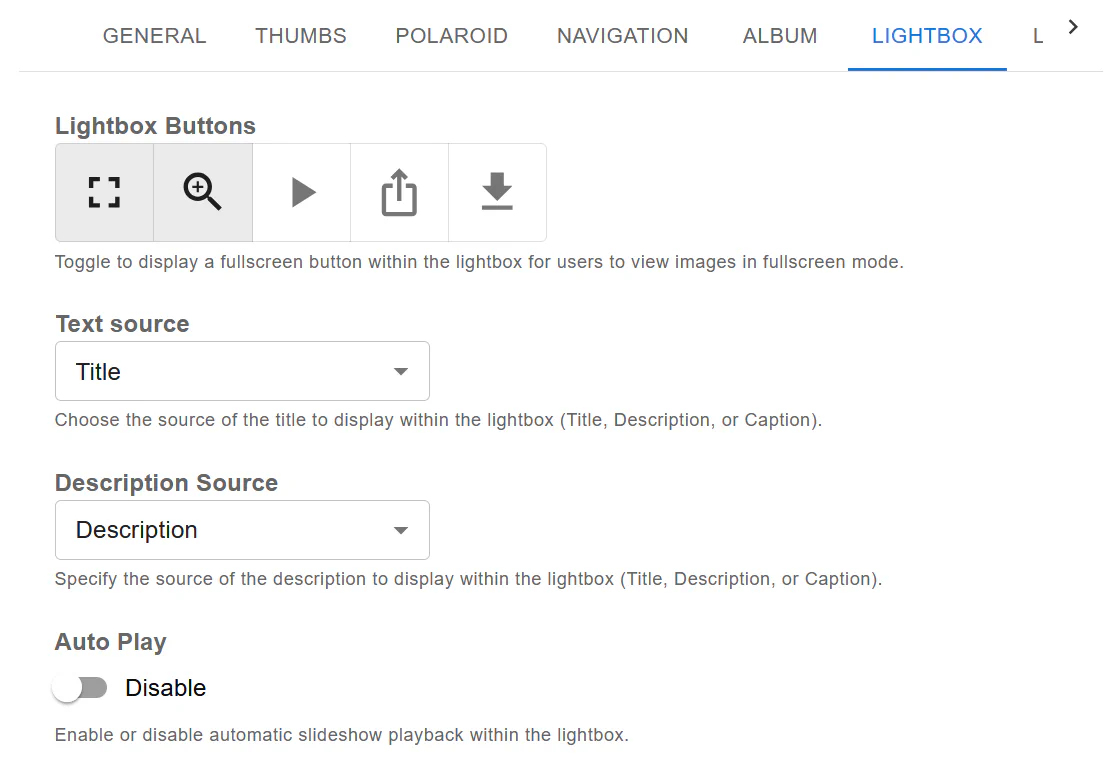

Fusion Lightbox settings

In Fusion, all lightbox text settings are located under the LIGHTBOX tab.

Available controls include:

  • Fullscreen toggle
  • Zoom button
  • Auto Play
  • Text Source selection
  • Description Source selection

Fusion provides a more modern interface while maintaining full flexibility.


Where Titles & Descriptions Come From

Robo Gallery uses image metadata from WordPress Media Library:

  • Title → Image Title field
  • Caption → Caption field
  • Description → Description field

To edit image metadata:

  1. Open your gallery
  2. Click Manage Images
  3. Edit Title / Caption / Description
  4. Save changes

Each image can have unique text settings.


Best Practice Recommendations

Use Title For:

  • Short image names
  • Product titles
  • Portfolio labels

Use Description For:

  • Detailed explanations
  • SEO content
  • Storytelling

Use Caption For:

  • Quick notes
  • Location names
  • Credits

Summary

Robo Gallery gives you complete control over:

  • What text is shown
  • Which metadata field is used
  • How it appears
  • Whether description panels and social buttons are enabled

Both Classic (v3) and Fusion (v5) allow flexible configuration — making it easy to adapt your gallery to any project.