Title here
Summary here
Robo Gallery does not use a separate category system like posts in WordPress.
Instead, categories are created using the Album Hierarchy, where parent galleries act as categories and child galleries belong to those categories.
This makes the gallery structure flexible and easy to manage.
Categories are simply parent galleries.
Example structure:
Portfolio (Category)
 ├ Web Design
 ├ Branding
 ├ Photography
 └ Motion Graphics
In this case:
You can also create multiple category levels.
Example:
Travel (Category)
 ├ Europe
 │  ├ Italy
 │  └ Spain
 └ Asia
    ├ Thailand
└ JapanFirst create the galleries that will become categories.
Go to:
Robo Gallery → Add New Gallery
Create galleries such as:
These galleries will later be used as categories.
Next open the hierarchy editor.
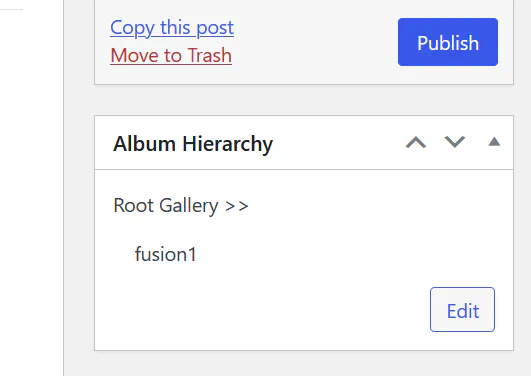
Inside the hierarchy editor you can arrange galleries to create category structure.
You can:
Once saved, the structure becomes active.
The appearance depends on the gallery version.
Categories appear as a navigation menu above the gallery thumbnails.
Visitors can switch between categories using the menu.
This works like a category filter.
In Fusion Gallery categories appear as albums (folders) inside the gallery.
Users navigate visually through album covers.
This provides a more modern browsing experience with:
Use categories when organizing large collections.
Good examples:
Portfolio
 ├ Web Design
 ├ Branding
 ├ UI/UX
 └ Photography
Photography
├ Weddings
├ Portraits
├ Landscapes
└ TravelProperties
├ Apartments
├ Houses
├ Commercial
└ Land| Feature | Categories | Tags |
|---|---|---|
| Structure | Hierarchical | Flat |
| Purpose | Organize galleries | Filter images |
| Navigation | Yes | Filtering |
| Best use | Albums / sections | Attributes |
Categories help structure the gallery, while tags allow filtering inside a gallery.
To create categories for galleries:
Parent galleries automatically become categories, creating a structured and easy-to-navigate gallery system.