Title here
Summary here
Lazy loading allows Robo Gallery to load images only when they become visible on the screen. This significantly improves page performance and reduces initial page load time, especially for large galleries.
Lazy Load is available in both:
In Classic galleries, lazy loading can be enabled in the Loading Options panel.
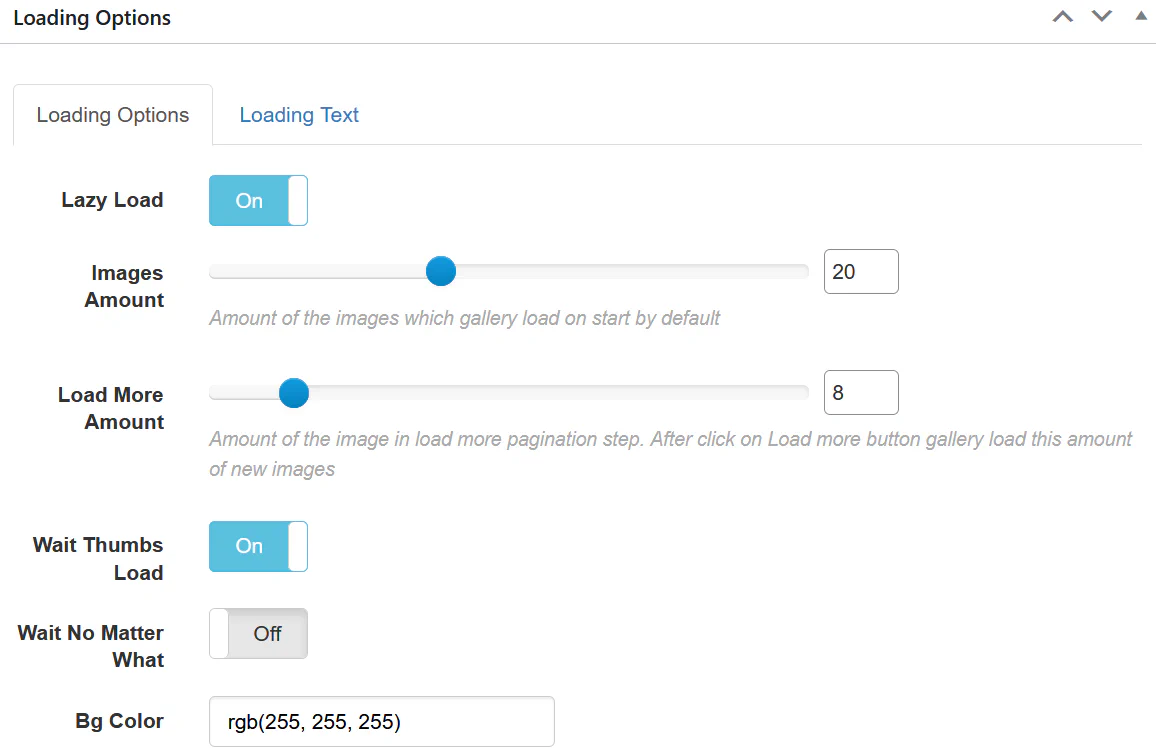
Enable the Lazy Load switch to activate the feature.
Images Amount Number of images loaded when the gallery first appears on the page.
Load More Amount Number of additional images loaded when the Load More button is clicked.
Wait Thumbs Load Waits until thumbnails are fully loaded before displaying the gallery.
Wait No Matter What Forces the gallery to wait for all images before rendering.
You can also customize the loading interface:
In Fusion galleries, lazy loading works together with pagination and infinite scrolling.
Lazy loading is automatically used when one of the following navigation modes is enabled:
Lazy loading is recommended when:
It is especially useful for portfolio, photography, and product galleries.
This ensures your gallery loads quickly and provides a smooth user experience.