Title here
Summary here
Robo Gallery includes a dedicated YouTube Gallery Type designed for displaying YouTube videos in a gallery layout.
This gallery type automatically loads videos from YouTube and creates a responsive video grid.
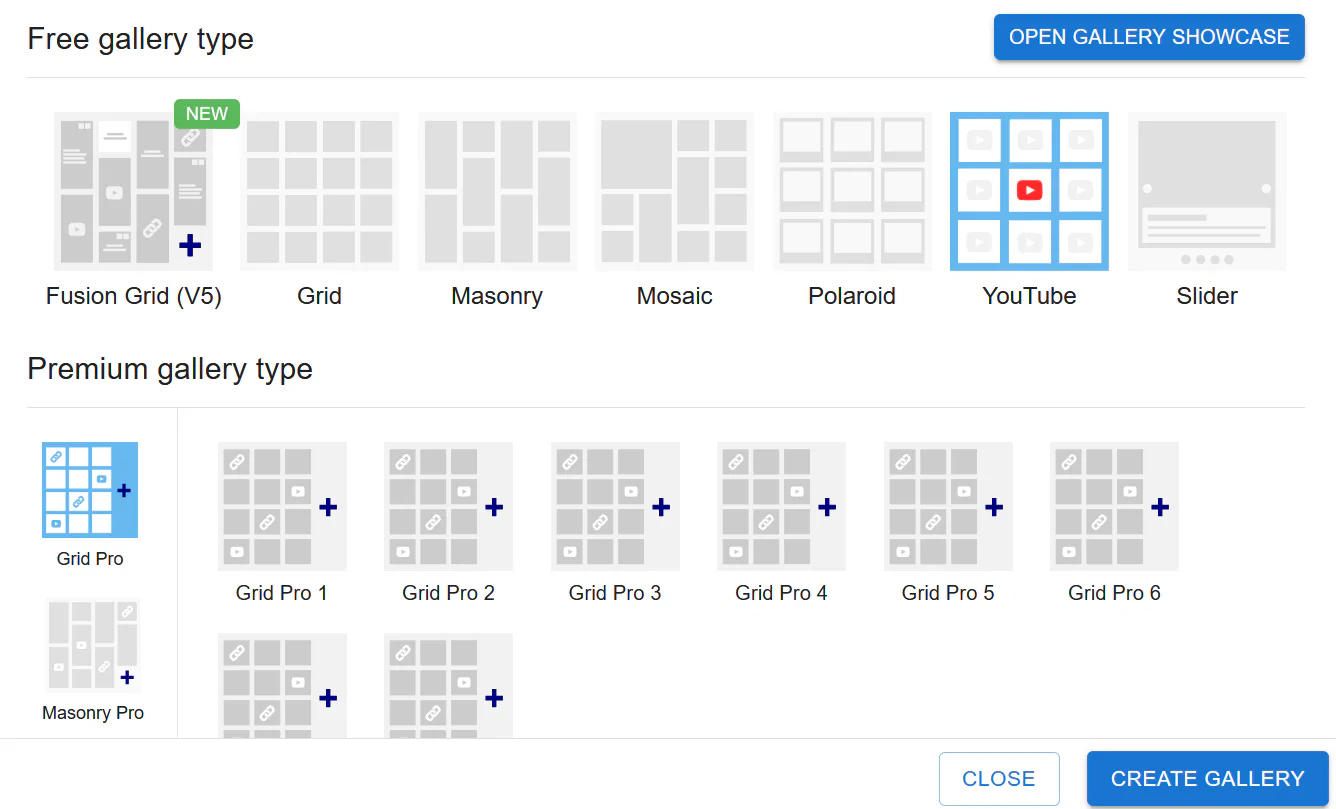
The YouTube gallery is ideal for displaying:
To create a YouTube gallery:
After creating the gallery, open YouTube Gallery Settings.
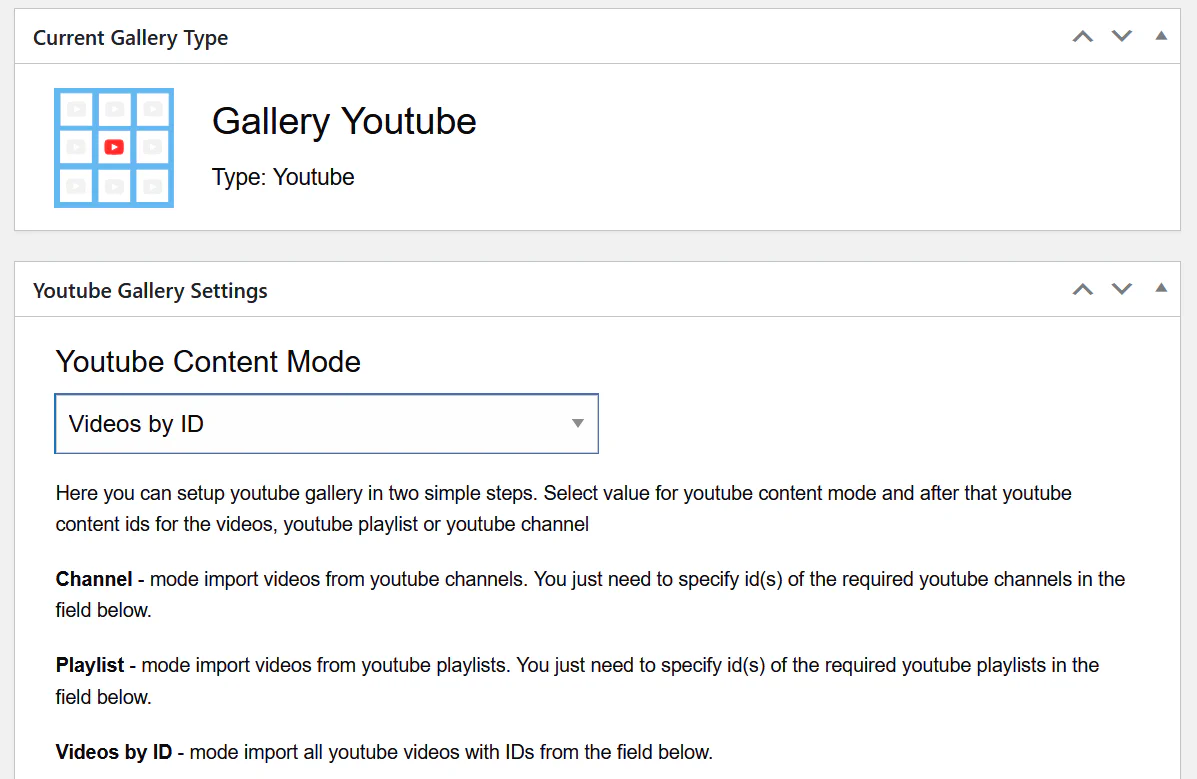
You can choose how videos are imported using the YouTube Content Mode setting.
Available modes:
Channel mode loads videos directly from a YouTube channel.
To use this mode:
The gallery will automatically import videos from the channel.
Playlist mode loads videos from a YouTube playlist.
Steps:
All videos from the playlist will appear in the gallery.
This mode allows you to manually define the videos that should appear in the gallery.
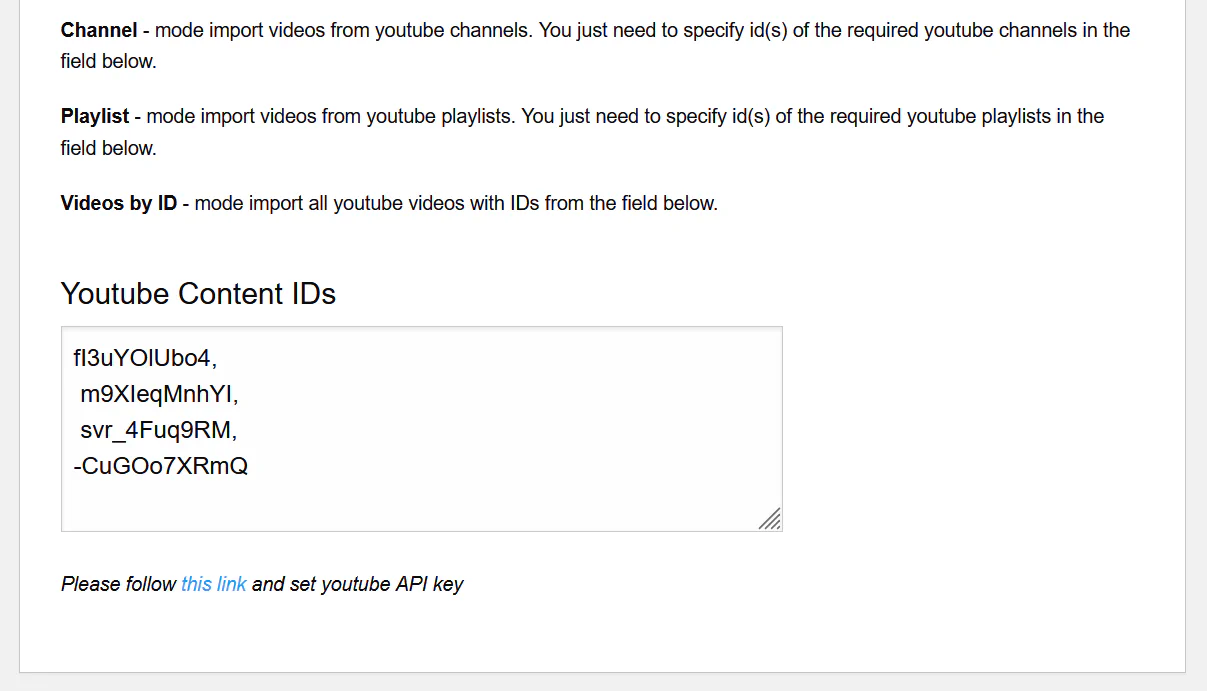
Enter video IDs in the YouTube Content IDs field.
Example:
fl3uYOIUbo4
m9XleqMnhYI
svr_4Fuq9RM
-CuGOo7XRmQ
Each line represents one YouTube video.
To use the YouTube gallery, you must configure a YouTube API key.
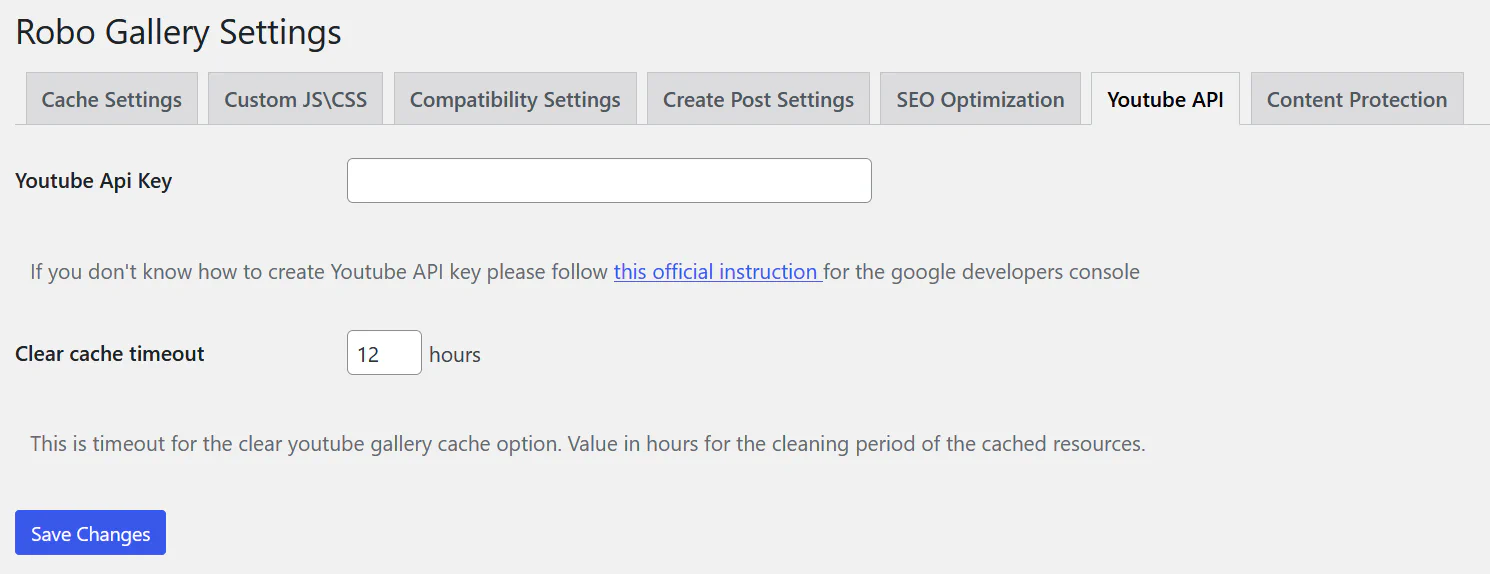
Go to:
Robo Gallery → Settings → Youtube APIPaste your YouTube API Key into the field and save the settings.
This allows Robo Gallery to retrieve video data such as:
YouTube Gallery is recommended when you want to display:
For single videos inside regular galleries, you can simply use Video Links instead.