Title here
Summary here
In Robo Gallery, albums are not a separate object type.
Albums are simply galleries that contain other galleries using the Album Hierarchy system.
This means that every album you create is actually just a parent gallery, and sub-galleries become the album’s content.
In Robo Gallery:
So an album is simply a parent gallery in the hierarchy.
Example structure:
Portfolio (Album)
 ├ Travel Gallery
 ├ City Gallery
 ├ Nature Gallery
 └ Architecture Gallery
The Portfolio gallery becomes the album.
To assign galleries to albums:
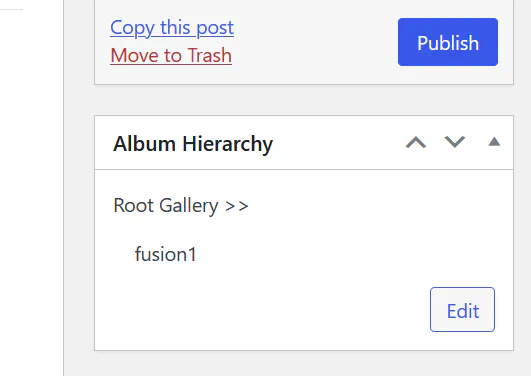
Inside the hierarchy editor you can move galleries to create a structure.
You can:
Example:
Travel (Album)
 ├ Europe
 │  ├ Italy
 │  └ France
 └ Asia
    ├ Thailand
└ JapanAfter organizing galleries:
The appearance depends on the gallery version.
Assigned galleries appear as navigation menu above thumbnails.
Users switch between albums using the menu.
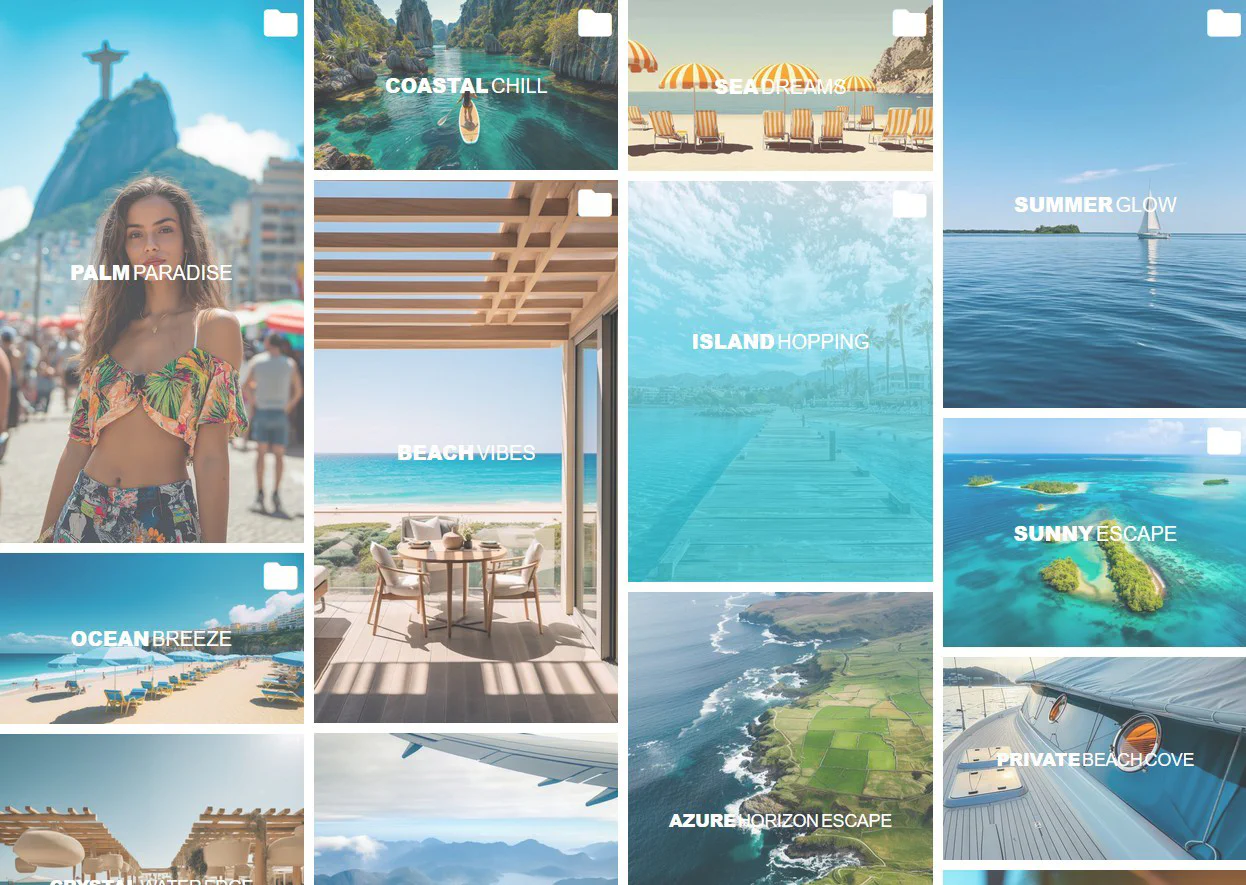
Albums appear inside the gallery as folders.
Users can click an album to open its gallery.
Features include:
Example structure:
Portfolio
 ├ Web Design
 ├ Branding
 ├ Photography
└ MotionSince albums are just galleries in hierarchy, you do not need to create a special album type.
Simply:
Robo Gallery will automatically treat parent galleries as albums.
To assign galleries to albums:
Parent galleries automatically become albums, organizing your content into a clear and structured gallery system.