Enabling Lightbox

Robo Gallery includes a built-in Lightbox system, which is enabled by default in all gallery types.

When a visitor clicks on an image, it opens in a fullscreen overlay with navigation, descriptions, and optional controls.

You do not need to manually activate Lightbox — it works automatically.

However, you can fully customize how it looks and behaves.


In Classic Grid layouts (up to version 3), Lightbox settings are located in the Lightbox Options section.
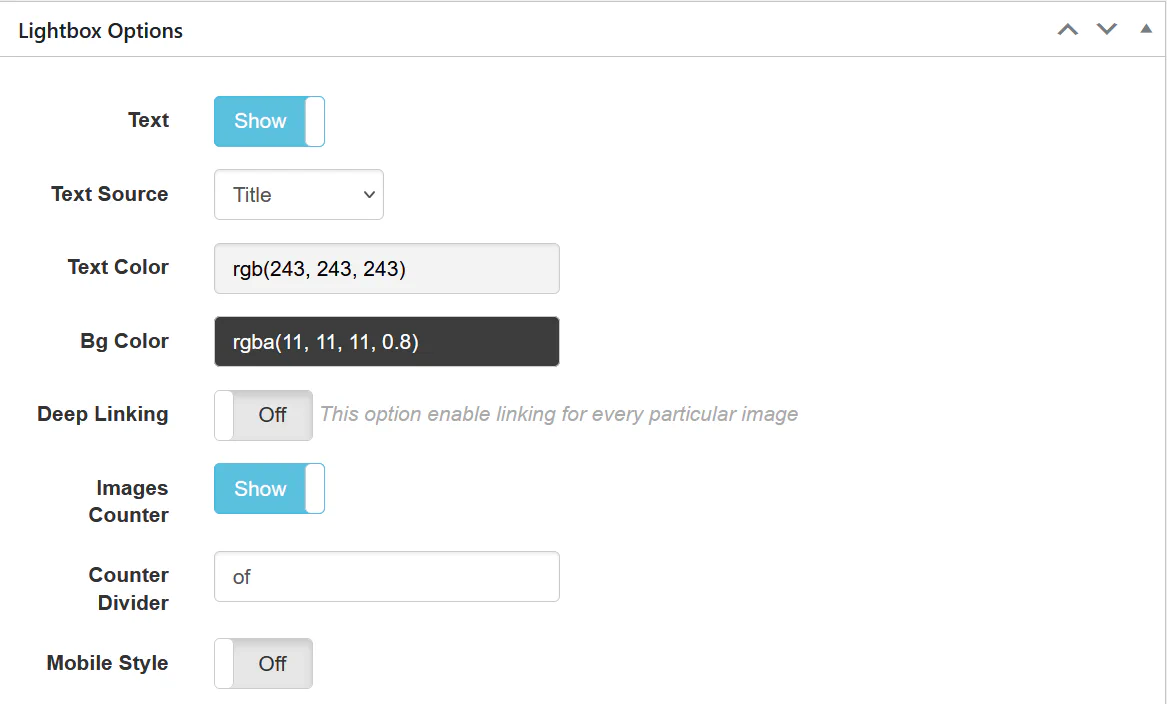
Classic Lightbox – Main Settings


Text Settings

You can:

  • Enable or disable text display
  • Choose Text Source:
    • Title
    • Description
    • Caption
  • Customize:
    • Text color
    • Background color

This controls how captions appear in the Lightbox overlay.
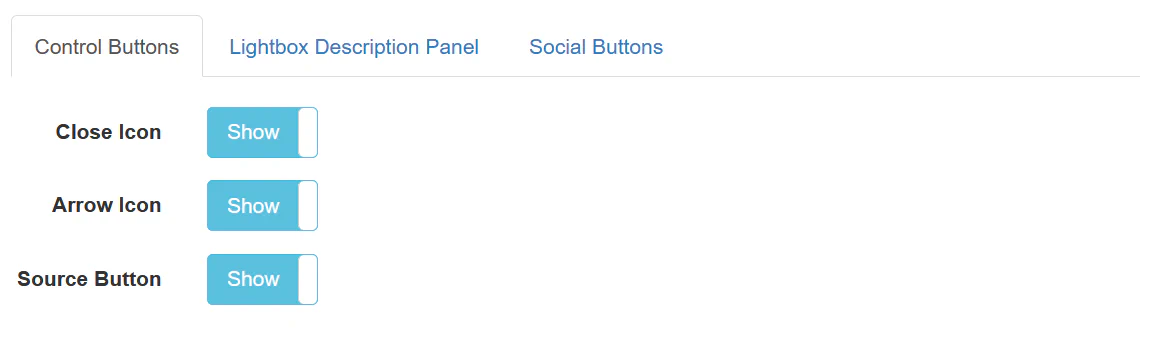

Deep Linking & Counter

Classic Lightbox – Additional Settings

Options include:

  • Deep Linking – Creates a direct URL for each image
  • Images Counter – Displays current image position (e.g., 2 of 10)
  • Mobile behavior adjustments

Deep Linking is useful for sharing specific images.
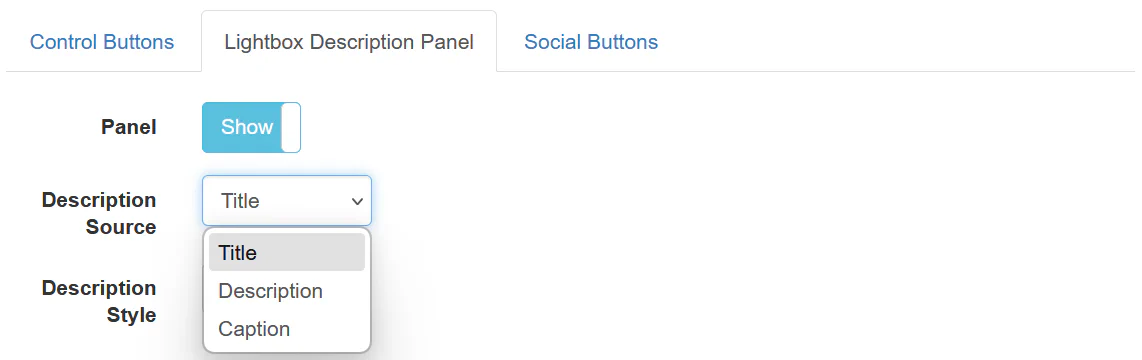

Control Buttons

Classic Lightbox – Control Buttons

You can toggle visibility of:

  • Close button
  • Arrow navigation
  • Source button

These options control the interaction style of the Lightbox.
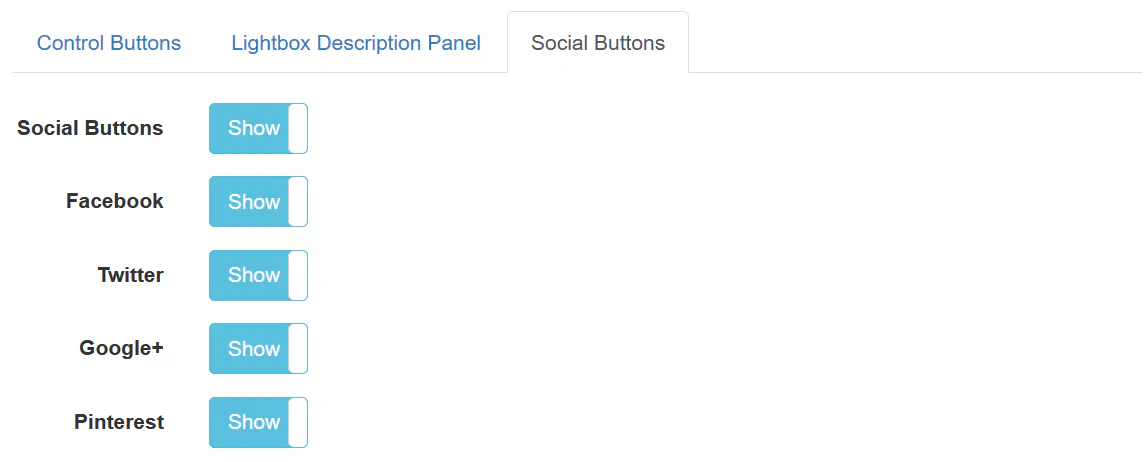

Description Panel & Social Sharing

Classic Lightbox – Description & Social

You can configure:

  • Description panel visibility
  • Description source (Title / Caption / Description)
  • Social share buttons:
    • Facebook
    • Twitter
    • Google+
    • Pinterest

Fusion Grid (Version 5+) – Advanced Lightbox

Fusion Grid introduces a modernized and extended Lightbox system.
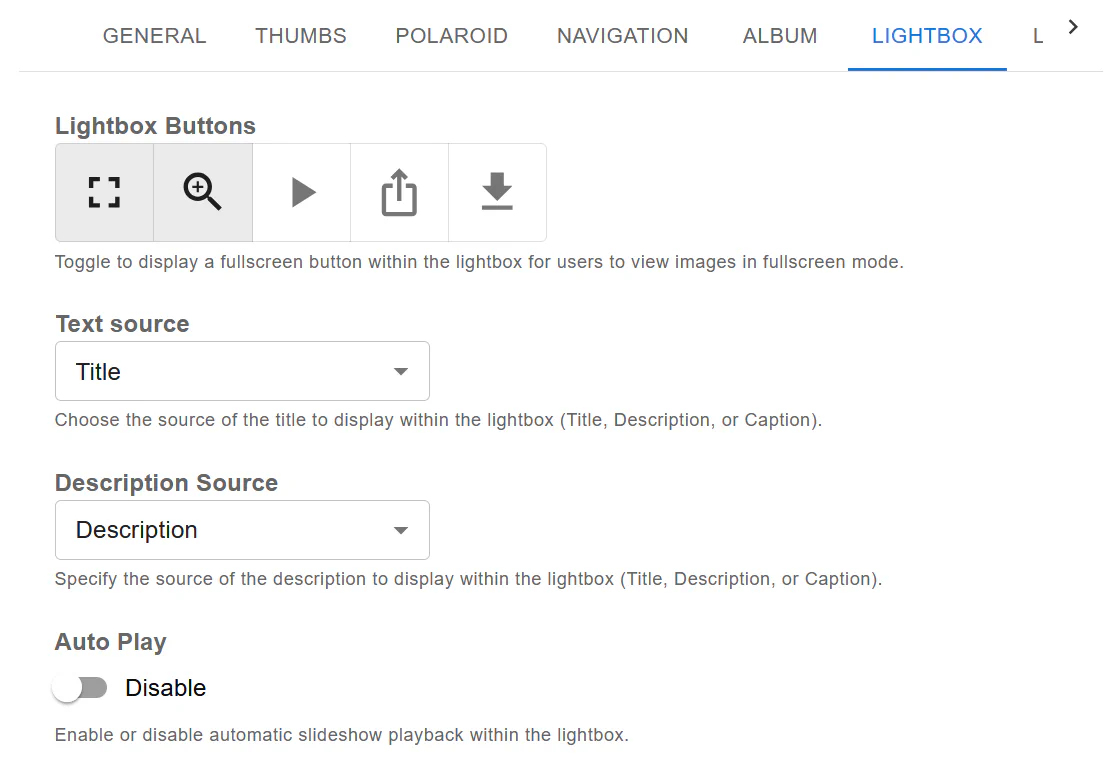
Fusion Lightbox Settings


Fusion Lightbox Features

Fusion allows you to control:

  • Fullscreen button
  • Zoom button
  • Slideshow (Auto Play)
  • Share button
  • Download button

You can enable or disable each button individually.


Separate Title & Description Sources

Unlike Classic Lightbox, Fusion allows:

  • Independent Title Source
  • Independent Description Source

This makes it possible to display both elements simultaneously.


Using Links Instead of Lightbox

Lightbox is enabled by default.

However, you can override it per image.

In the Media Manager, each image includes:

  • Link field
  • Blank Link (open in new tab)
  • Video Link (YouTube / Vimeo)

The image will act as a clickable link and will NOT open in Lightbox.

If you add a Video URL:

The video will open inside the Lightbox.


Mixing Lightbox, Links & Videos

One of Robo Gallery’s strongest features is flexibility.

In a single gallery you can mix:

  • Standard Lightbox images
  • Linked images
  • YouTube/Vimeo video thumbnails

Example:

Image Behavior
Image 1 Opens in Lightbox
Image 2 Links to external page
Image 3 Opens YouTube video
Image 4 Opens downloadable file

Everything works seamlessly together.


Best Practices

  • Keep Lightbox enabled for portfolio-style galleries
  • Use custom links for call-to-action images
  • Enable Deep Linking for shareable campaigns
  • Disable unused buttons for cleaner UI
  • Use Fusion Lightbox for modern projects

Summary

Lightbox in Robo Gallery is:

  • Enabled by default
  • Fully customizable
  • Available in both Classic and Fusion versions
  • Compatible with images, links, and videos

For new projects, Fusion Lightbox is recommended due to its extended controls and modern UI.