Title here
Summary here
The Media Manager in Robo Gallery allows you to easily manage and replace existing images inside your gallery. This tool lets you add new photos, remove unwanted ones, and edit all related information - without needing to recreate the gallery from scratch.
To replace or update images, open your gallery and click the Manage Images button. This will open the Media Manager window.
Here, you can:
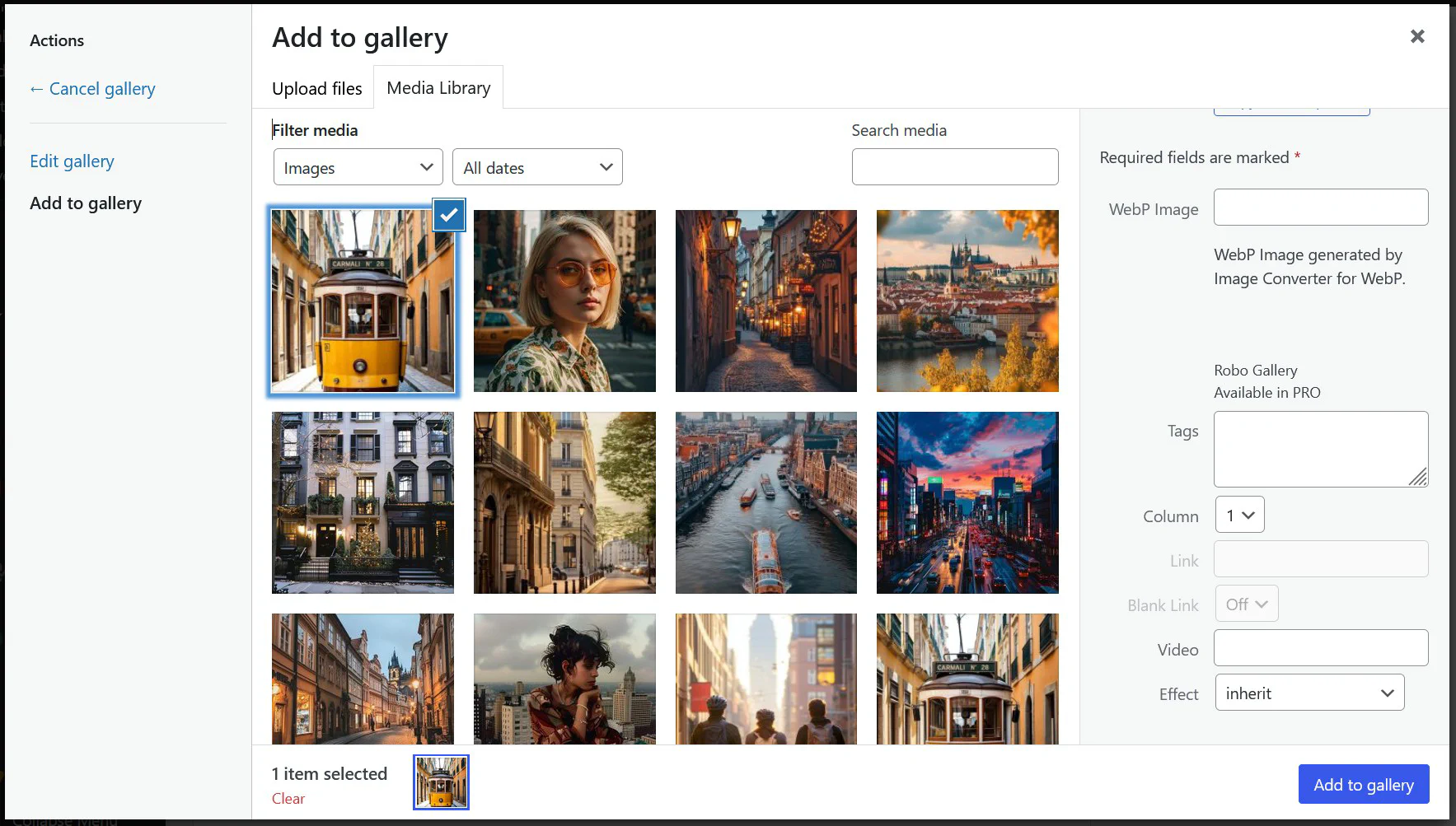
When you select an image inside the Media Manager, the sidebar on the right displays additional options. These options allow you to configure how each image behaves on the front end.
You can update:
To replace an image while keeping its metadata:
This approach ensures that your gallery structure and settings remain intact.
Robo Gallery provides a simple and flexible way to manage and replace images within your galleries. You can upload, delete, or modify images at any time - without losing configuration or needing to rebuild the gallery.
Combine this with the Image Options and Drag-and-Drop Sorting features for maximum creative flexibility.