Title here
Summary here
Robo Gallery allows you to attach video links to gallery images. When a visitor clicks the image, the video will open inside the gallery lightbox.
This feature works in all gallery types, including:
Video links are added in the Media Manager when editing an image.
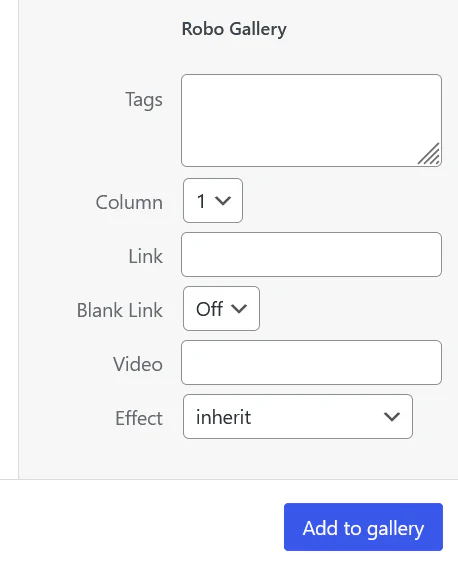
Steps:
After saving, clicking the thumbnail will open the video in the gallery lightbox.
Supported video platforms depend on the gallery type.
Classic galleries support video links from:
Example links:
https://www.youtube.com/watch?v=VIDEO_ID
https://vimeo.com/VIDEO_ID
Fusion gallery supports more video platforms.
Supported services include:
Simply paste the video link into the Video field.
Video items can be mixed with regular images in the same gallery.
Example gallery content:
This allows you to create mixed media galleries combining images, videos, and links.
If you need to display entire YouTube channels or playlists, consider using the dedicated YouTube Gallery type instead.