Lightbox Themes & Styles
Robo Gallery includes a built-in Lightbox system that allows visitors to open images in an overlay view.
Lightbox is enabled by default in all gallery types.
However, its appearance, behavior, and content display can be fully customized — both in:
- Classic Gallery (up to Version 3)
- Fusion Grid (Version 5+)
Classic Gallery (Version 3)
Lightbox settings are available in the Lightbox Options section.
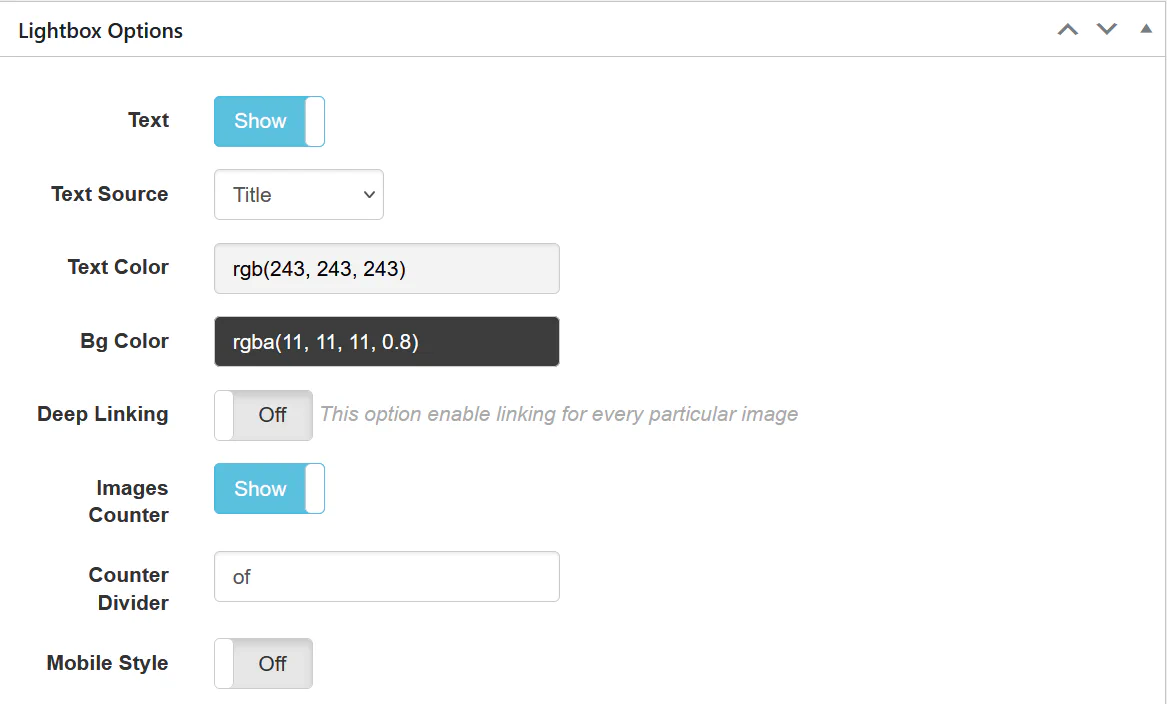
Text Settings#
You can:
- Enable / Disable text
- Select Text Source:
- Title
- Description
- Caption
- Customize:
- Text Color
- Background Color
This controls how captions appear over the image.
Deep Linking#
Enable Deep Linking to create a unique URL for each image.
This allows:
- Sharing specific images
- Linking directly to gallery items
You can show or hide:
- Close Icon
- Arrow Navigation
- Source Button
These options define how users navigate inside the lightbox.
Description Panel#
In the Lightbox Description Panel tab you can:
- Enable the panel
- Choose description source:
- Title
- Description
- Caption
You can enable sharing buttons for:
- Facebook
- Twitter
- Google+
- Pinterest
Fusion Grid (Version 5+)
Fusion introduces a more advanced and modern Lightbox system.
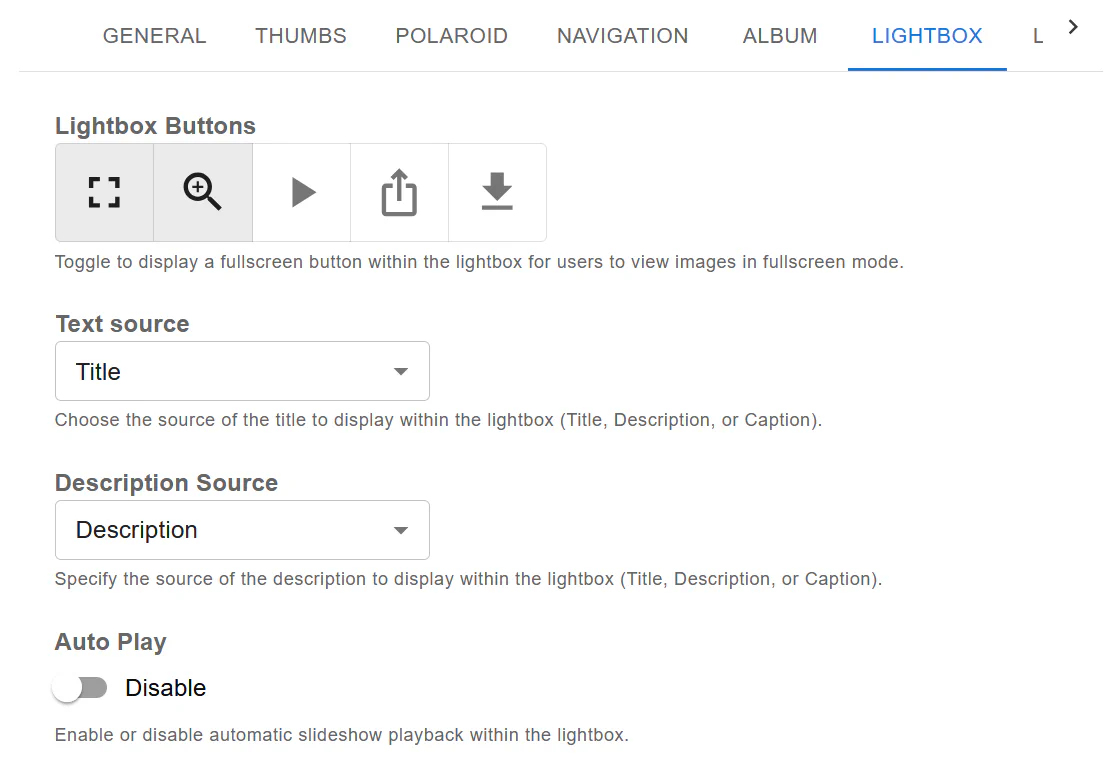
You can individually enable or disable:
- Fullscreen
- Zoom
- Slideshow
- Share
- Download
Title & Description Sources#
Fusion allows separate configuration for:
- Title Source
- Description Source
This makes it possible to display both title and description simultaneously.
Auto Play#
Enable automatic slideshow playback inside the lightbox.
Useful for:
- Portfolios
- Product galleries
- Presentations
Important: Mixing Lightbox, Links & Video
Lightbox is enabled by default.
However:
- If you add a Link to an image in Media Manager → the image will behave as a linked image (not lightbox).
- If you add a Video URL (YouTube/Vimeo) → it opens in the lightbox as a video.
This allows mixing in one gallery:
- Standard lightbox images
- Linked images
- Video items
Styling Tips
- Use darker overlay background for better readability.
- Avoid too much text inside lightbox.
- Disable unnecessary buttons for cleaner UI.
- Enable deep linking when sharing images in campaigns.
Summary#
Classic Lightbox (v3) provides essential customization tools.
Fusion Lightbox (v5+) offers:
- Modern UI
- Advanced controls
- Better responsiveness
- Extended configuration
For new projects, Fusion Lightbox is recommended.