Title here
Summary here
Robo Gallery Fusion allows you to restrict access to a gallery using password protection. This is useful when you want to share galleries privately with clients, friends, or specific users.
With password protection enabled, visitors must enter the correct password before they can view the gallery.
To protect a gallery with a password:
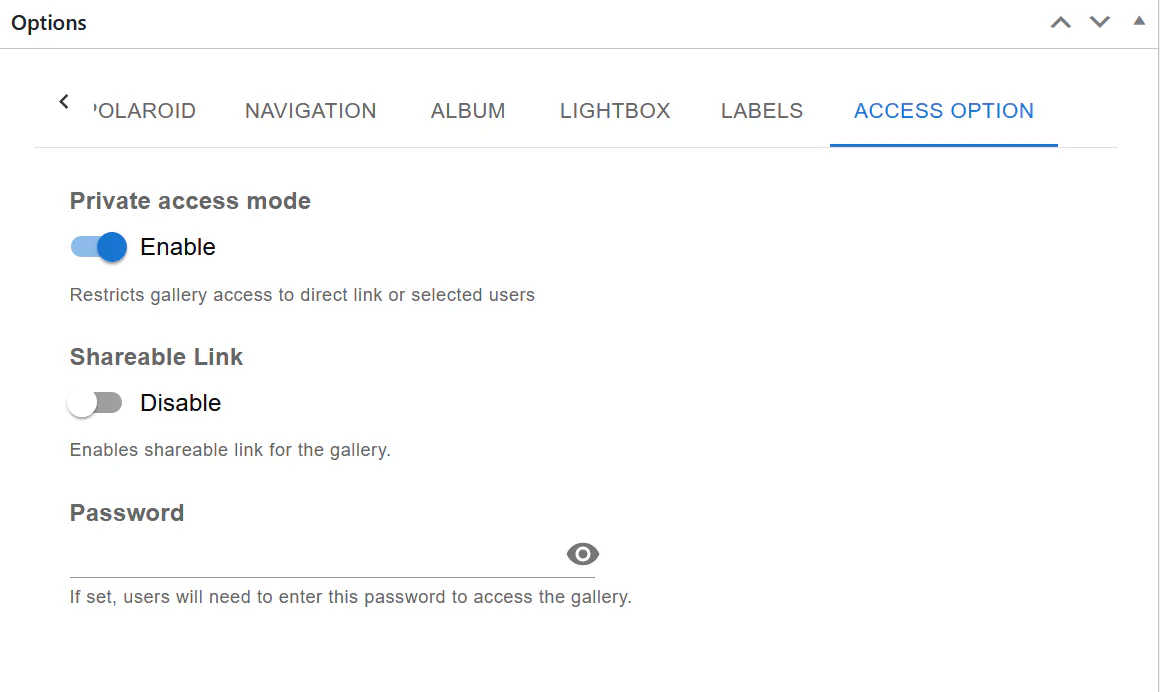
Once enabled, additional access control settings become available.
Inside the Access Option tab you will find the Password field.
Enter the password you want to use to protect the gallery.
After saving the gallery:
This ensures only authorized users can access your gallery.
Fusion galleries can also use shareable links.
The Shareable Link option allows you to generate a direct link that can be sent to users.
Depending on your configuration:
This feature is useful for:
Password protected galleries are commonly used for:
Photographers often protect galleries before delivering images to clients.
Wedding, birthday, or family galleries can be shared securely.
Teams can share internal photos without making them public.
Designers and agencies can share draft visual materials with restricted access.
To create a password protected gallery in Fusion:
Visitors will need to enter the password before viewing the gallery content.
Password protection helps keep your galleries private while still allowing easy sharing.