Infinite Scroll Setup

Infinite Scroll allows your gallery to automatically load more images as the visitor scrolls down the page. Instead of clicking a “Load More” button or navigating between pages, new images appear seamlessly.

This feature is available in both Classic (v3) and Fusion (v5) versions of Robo Gallery.


Classic Gallery (v3)

In Classic version, Infinite Scroll is configured inside:

Navigation → Pagination


Step 1: Enable Pagination

First, make sure pagination is enabled.

You can choose:
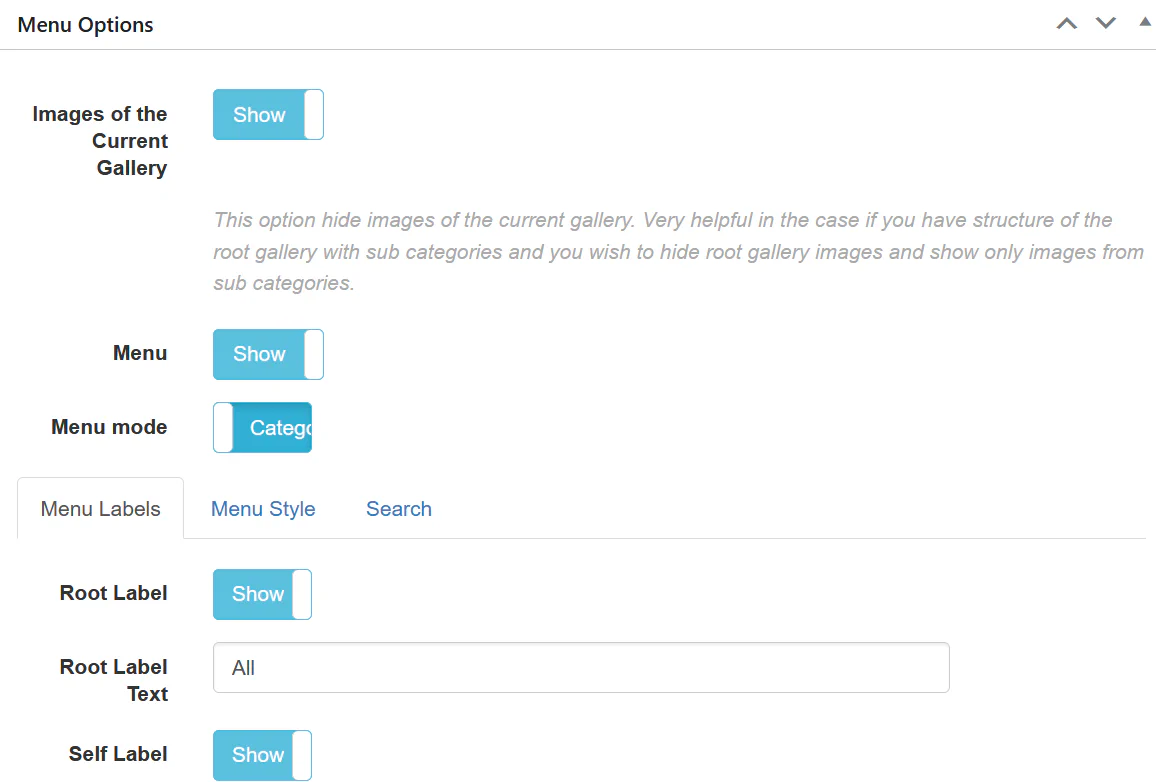
  • Pagination
  • Load More
  • or keep it enabled for Infinite Scroll usage

Step 2: Enable Infinite Scroll

Classic Pagination Options

Inside the Pagination section:

  • Turn Infinite ScrollEnable
  • Set Images Per Page
  • Optionally enable Breadcrumbs

When Infinite Scroll is enabled:

  • The gallery automatically loads the next set of images
  • The “Load More” button is no longer required
  • Images load when the user approaches the bottom of the gallery

To improve performance, also configure:
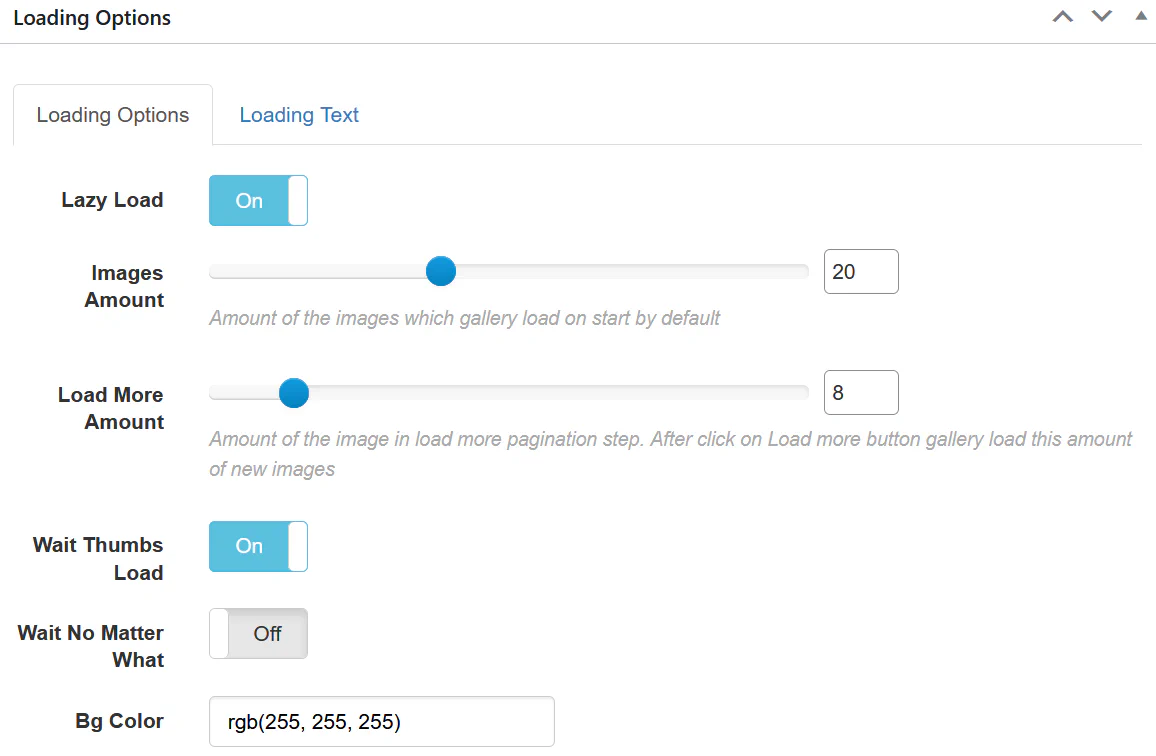
Classic Loading Options

  • Enable Lazy Load
  • Set a reasonable Images Amount
  • Configure Load More Amount
  • Enable Wait Thumbs Load

This prevents performance issues on large galleries.


Fusion Gallery (v5)

In Fusion version, Infinite Scroll is located under:

Navigation → Pagination
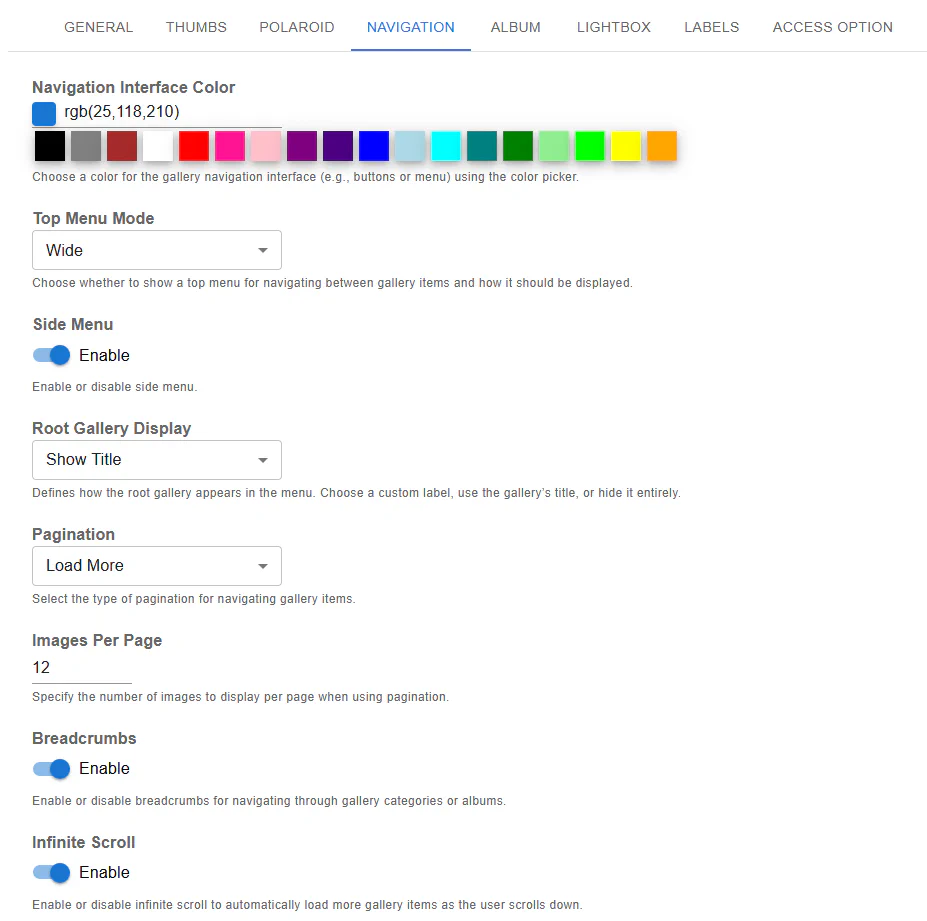
Fusion Navigation


Step 1: Set Pagination Mode

Inside Pagination settings:

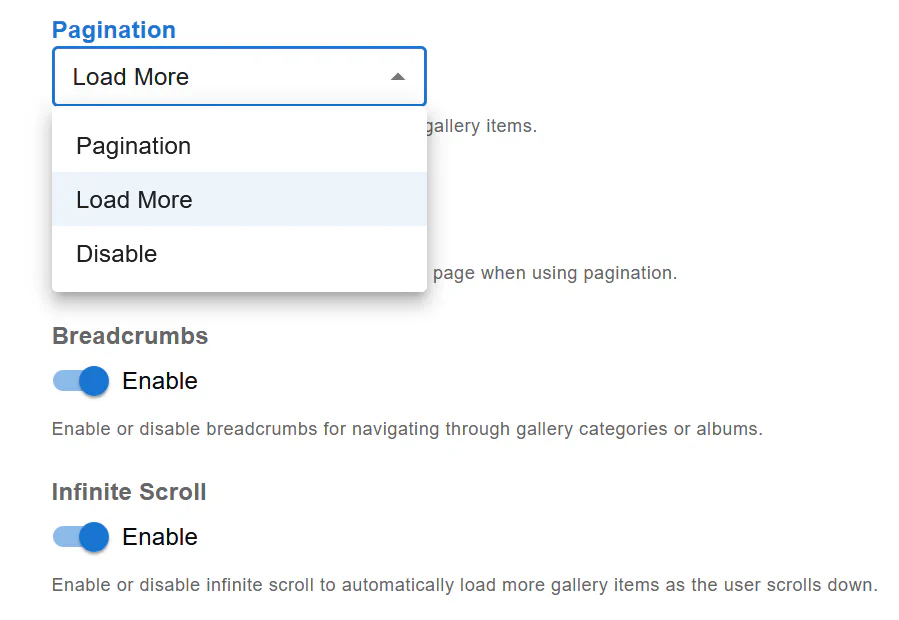
Fusion Pagination Mode

Choose:

  • Pagination
  • or Load More

Then enable:

  • Infinite Scroll → Enable

Step 2: Configure Images Per Page

Set:

  • Images Per Page – defines how many images load per scroll step

This setting directly affects performance and user experience.


How Infinite Scroll Works

  1. Initial images load when the page opens.
  2. When the user scrolls near the bottom,
  3. The gallery automatically loads the next batch.
  4. The process repeats until all images are displayed.

No clicks required.


When to Use Infinite Scroll

Infinite Scroll works best for:

  • Portfolio galleries
  • Photography websites
  • Creative showcases
  • Mobile-first layouts
  • Galleries with large image collections

When NOT to Use Infinite Scroll

Avoid Infinite Scroll if:

  • You need clear page structure
  • SEO requires paginated URLs
  • Users must access specific page numbers
  • You have extremely large image collections without lazy loading

Performance Tips

To ensure smooth performance:

  • Always enable Lazy Load
  • Limit Images Per Page
  • Avoid loading too many images initially
  • Optimize image sizes

Infinite Scroll improves user experience — but only when performance is properly configured.


Final Notes

Infinite Scroll provides a modern, seamless browsing experience inside Robo Gallery.

Whether you’re using Classic (v3) or Fusion (v5), the setup is simple:

  1. Enable Pagination
  2. Turn on Infinite Scroll
  3. Configure Images Per Page
  4. Optimize loading settings

Your gallery will now load images automatically as visitors scroll.