Title here
Summary here
Robo Gallery allows you to configure how videos behave inside galleries. Videos can be attached to individual gallery items and displayed in the lightbox player when users click the thumbnail.
Video settings are configured per gallery item in the Media Manager.
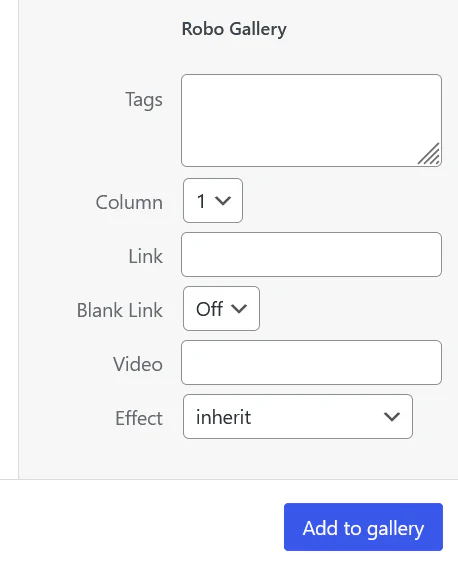
To attach a video to an image:
Once saved, clicking the image will open the video in the lightbox.
The Video field defines what happens when a gallery item is clicked.
Possible behaviors:
If the Video field is empty:
If a video link is provided:
If the Link field is used instead:
Supported platforms depend on the gallery type.
Supported providers:
Fusion galleries support additional platforms:
Simply paste the video URL into the Video field and Robo Gallery will automatically embed the player.
A single gallery can contain different types of items:
This allows you to build flexible galleries combining images, videos, and external content.