Title here
Summary here
The Bulk Image Upload tool allows you to upload large sets of images to Robo Gallery quickly and efficiently. It’s designed to save time when managing big galleries, providing the option to import all image metadata - such as titles, captions, tags, and video links - automatically.
⚙️ This feature is available in the PRO version of Robo Gallery.
You can upload a large batch of images directly to your server, organized into folders and subfolders.
Along with your image files, include a configuration file named file_list.txt.
This file contains all the metadata for each image in JSON format - such as titles, descriptions, and links.
Example configuration:
"cars-01.jpg": {
  "long_name": "Red Fury",
  "caption": "Cruising in Style",
  "description": "Unleashing the full power of modern engines and elegant interiors.",
  "alternative_text": "Luxury Sport Car Image 1",
  "link": "",
  "type_link": 1,
  "video_link": "",
  "tags": "modern, engine, turbo"
},
"cars-02.jpg": {
  "long_name": "Speed Legend",
  "caption": "Precision Performance",
  "description": "Aerodynamic bodywork, top-tier interiors, and unmatched horsepower speed.",
  "alternative_text": "Luxury Sport Car Image 2",
  "link": "",
  "type_link": 1,
  "video_link": "",
  "tags": "elegant, track, performance, automotive"
}
When Robo Gallery imports the images, all of this content will be automatically mapped to the gallery media manager fields - saving hours of manual editing.
The Robo Bulk Uploader appears as a separate plugin section in your WordPress admin panel.
You can find it in the left sidebar under Robo Bulk Uploader.
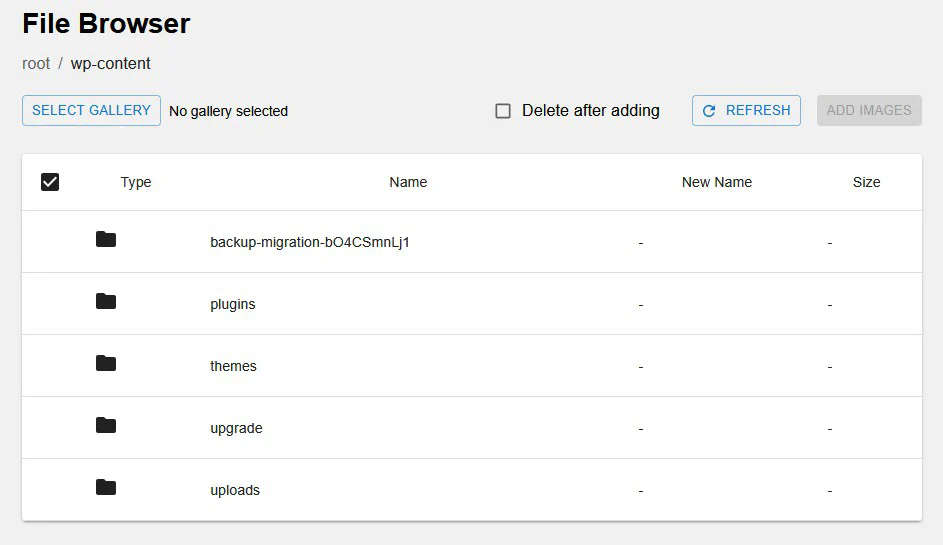
Clicking this menu item opens the uploader interface a File Browser that displays your WP ROOT directory. From here, you can navigate through your folders to locate uploaded image sets and import them directly into your galleries.
Click the Select Gallery button to choose which gallery should receive the uploaded images.
A pop-up window will display all available galleries. Select the desired one and click Select.
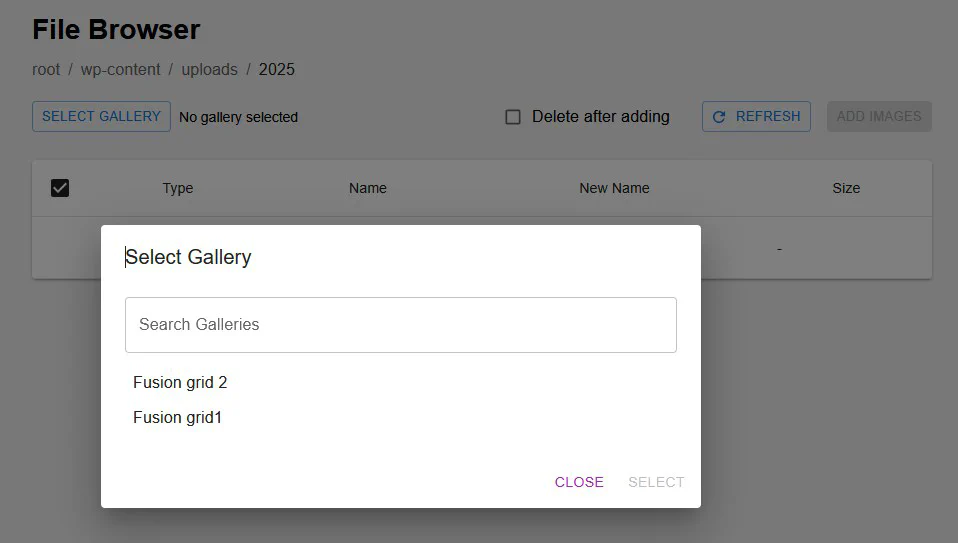
After selecting a gallery:
Use the checkboxes to select the folders or image sets you want to upload.
Click Add Images to start the import.
All files and their metadata (from the file_list.txt) will be automatically added to the chosen gallery.
If you enable Delete after adding, the uploaded files will be removed from the server after import to save space.
Perfect for large projects with hundreds of images.
Organize your folders logically - one folder = one gallery set.
Always include the file_list.txt file to automatically fill metadata.
The import process is safe and doesn’t affect existing galleries.
The Bulk Image Upload tool is a simple yet powerful feature designed to speed up the process of creating large image galleries. It helps you automate repetitive tasks like adding captions or video links for every photo - letting you focus on creativity instead of manual work.