Title here
Summary here
The Tags Menu in Classic Robo Gallery allows you to filter gallery images by custom tags instead of categories. This is especially useful when images belong to multiple logical groups (e.g., colors, themes, features, or topics).
Unlike categories (which follow a hierarchy), tags are flexible and non-hierarchical, making them ideal for dynamic filtering.
By default, the gallery menu may be configured to display Categories. To enable tag-based filtering:
Categories to Tags.
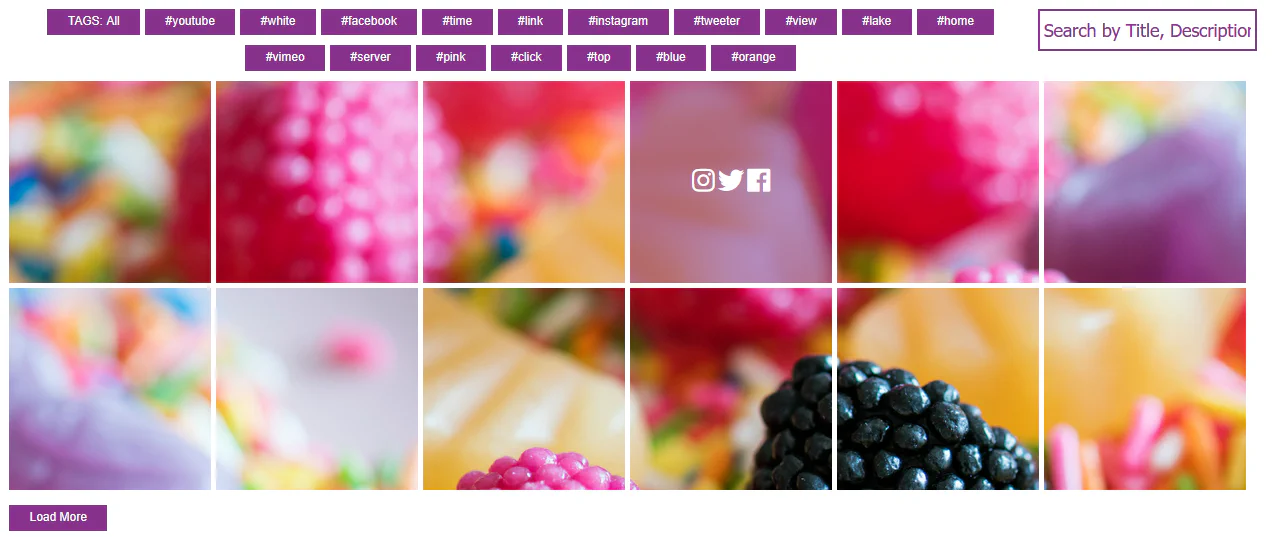
Once enabled, the menu above the thumbnails will display tag-based filters instead of categories.
Tags are assigned individually to each image inside the gallery.
To add tags:
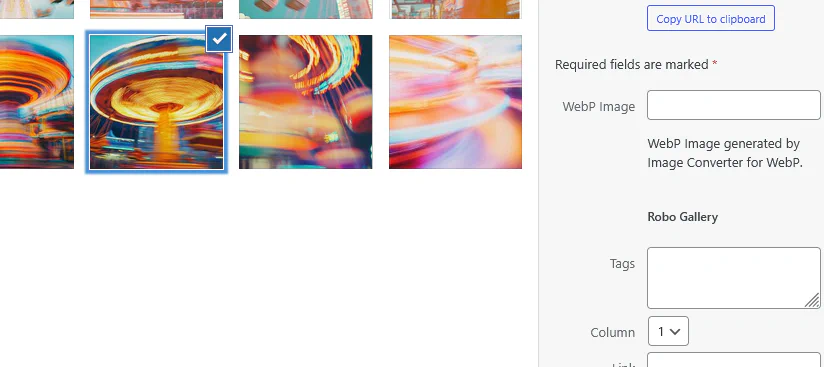
Each image can have multiple tags. This allows it to appear in several filtered views.
Inside Menu Options, you can control how tags are displayed.
Available ordering options:
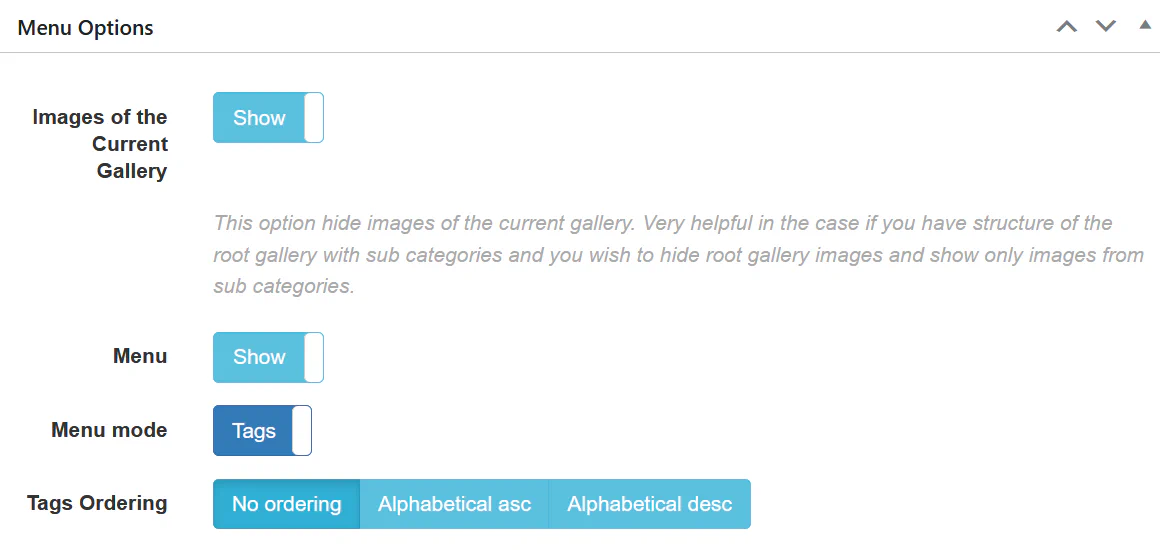
This helps you control how filters are presented to users.
After configuration:
This creates a dynamic and interactive browsing experience.
Use Tags when:
Use Categories when:
For complex galleries, combine:
This gives you both navigation hierarchy and flexible filtering.
The Tags Menu is a powerful way to improve usability and help visitors quickly find relevant images within your gallery.