Title here
Summary here
Albums in Robo Gallery allow you to organize galleries into a hierarchical structure.
Instead of displaying all images in one gallery, you can group them into albums and sub-albums, making navigation much easier for large collections.
Albums are created using the Album Hierarchy feature.
To create album structure:
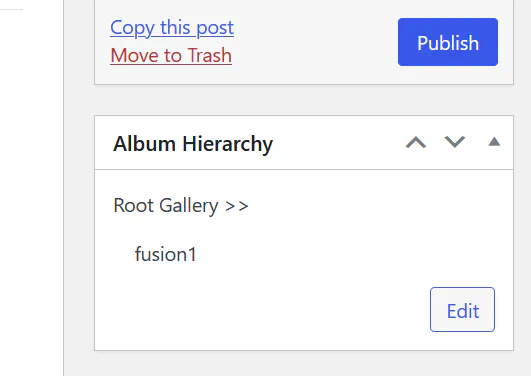
Inside the Edit hierarchy of Robo Gallery window you can create nested albums.
Example structure:
This structure determines how galleries are displayed on the front-end.
In Robo Gallery Version 3, albums appear as a menu above the gallery thumbnails.
When users click a category, the gallery dynamically switches to display images from that album.
Example navigation:
This creates a filtering experience similar to category navigation.
You can configure menu appearance inside:
Menu Options
Options include:
In Version 5 (Fusion Gallery), albums behave differently.
Instead of a top filter menu, albums appear directly inside the gallery as folders.
Example:
Features include:
This makes the gallery behave more like a visual file explorer.
Version 5 supports additional navigation tools:
These options can be configured in the Navigation tab.
Each album can display a cover image, which represents the album visually.
Inside Album Settings you can control:

This helps create a clean and intuitive album interface.
Albums are designed for structure, while tags are designed for filtering.
| Feature | Albums | Tags |
|---|---|---|
| Structure | Hierarchical | Flat |
| Level | Gallery level | Image level |
| Navigation | Yes | Filtering |
| Breadcrumbs | Yes | No |
Use albums to organize your gallery, and tags to refine image filtering.
After creating albums:
Albums transform Robo Gallery from a simple image grid into a structured visual content system.